• Pl chevron_right

      Kaidan: Kaidan's End-to-End Encryption Trust Management

      news.movim.eu / PlanetJabber • 31 August 2022 • 2 minutes

    We worked several months on Kaidan’s upcoming end-to-end encryption and trust management. Once Kaidan 0.9 is released, it will provide the latest OMEMO Encryption . But it will also make trust decisions in the background for you if it’s possible. Some trust decisions have to be made manually but there are many others Kaidan automates without decreasing your security. That is done by automatically sharing trust decisions via already secured channels.

    The feature Kaidan uses is called Automatic Trust Management (ATM) . Your device receives the encryption data to secure the conversation between you and your contact via the internet. That encryption data can be the data of an attacker. While you think that you communicate with your contact securely, the attacker can read, modify or drop everything you exchange.

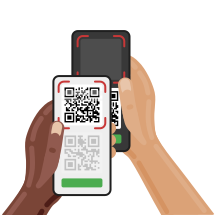
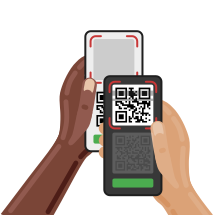
    You have to make sure that the encryption data you received are really those from your contact to detect and stop an attack. That is done by comparing the exchanged encryption data via a second secure channel. Kaidan provides QR codes for that. QR codes are especially helpful when you want a secure conversation with a contact you can meet in person. For that, you simply scan your contact’s QR code and vice versa.

    First QR code scan

    Second QR code scan

    But what if your contact used a smartphone during the first QR code scan and now wants to chat with you via a notebook too? Usually, your contact would have to scan the notebook’s QR code with the smartphone and vice versa. Furthermore, you would have to scan the notebook’s QR code and vice versa. If you or your contact gets another device or even replaces an old one, QR codes have to be scanned again. That leads to multiple mutual scans, one for each pair of devices.

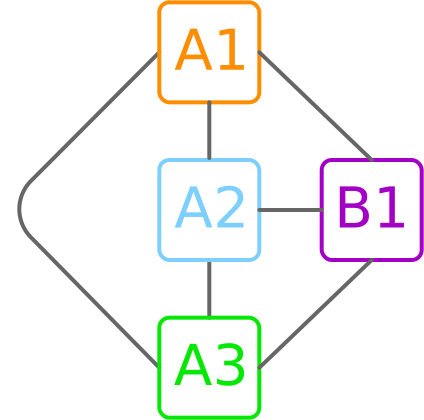
    In the following example graph, there are four devices. B1, B2 and B3 could be your contact’s devices and A1 yours. The six gray edges are the mutual QR code scans that are needed to stop all possible attacks.

    Needed trust decisions

    With ATM, many QR code scans between you and your contact become unnecessary. The first meeting is used for the initial scan. The encryption data of all new devices is checked via the secure channel established by it. If your contact wants to chat via the notebook, your contact simply scans the notebook via the smartphone and vice versa. But all other scans are not needed anymore. The trust decisions are communicated between the devices that already have a secure channel.

    In the example graph, ATM could work as follows:

    1. A1 scans B1’s QR code and vice versa.
    2. A1 scans A2’s QR code and vice versa.
    3. A2 scans A3’s QR code and vice versa.
    4. The remaining three edges are created automatically by ATM via the existing secure channels.

    If you want to try out that new feature, stay tuned! Our next release will come soon.

    • Pl chevron_right

      Kaidan: Kaidan's End-to-End Encryption Trust Management

      news.movim.eu / PlanetJabber • 31 August 2022 • 2 minutes

    We worked several months on Kaidan’s upcoming end-to-end encryption and trust management. Once Kaidan 0.9 is released, it will provide the latest OMEMO Encryption . But it will also make trust decisions in the background for you if it’s possible. Some trust decisions have to be made manually but there are many others Kaidan automates without decreasing your security. That is done by automatically sharing trust decisions via already secured channels.

    The feature Kaidan uses is called Automatic Trust Management (ATM) . Your device receives the encryption data to secure the conversation between you and your contact via the internet. That encryption data can be the data of an attacker. While you think that you communicate with your contact securely, the attacker can read, modify or drop everything you exchange.

    You have to make sure that the encryption data you received are really those from your contact to detect and stop an attack. That is done by comparing the exchanged encryption data via a second secure channel. Kaidan provides QR codes for that. QR codes are especially helpful when you want a secure conversation with a contact you can meet in person. For that, you simply scan your contact’s QR code and vice versa.

    First QR code scan

    Second QR code scan

    But what if your contact used a smartphone during the first QR code scan and now wants to chat with you via a notebook too? Usually, your contact would have to scan the notebook’s QR code with the smartphone and vice versa. Furthermore, you would have to scan the notebook’s QR code and vice versa. If you or your contact gets another device or even replaces an old one, QR codes have to be scanned again. That leads to multiple mutual scans, one for each pair of devices.

    In the following example graph, there are four devices. B1, B2 and B3 could be your contact’s devices and A1 yours. The six gray edges are the mutual QR code scans that are needed to stop all possible attacks.

    Needed trust decisions

    With ATM, many QR code scans between you and your contact become unnecessary. The first meeting is used for the initial scan. The encryption data of all new devices is checked via the secure channel established by it. If your contact wants to chat via the notebook, your contact simply scans the notebook via the smartphone and vice versa. But all other scans are not needed anymore. The trust decisions are communicated between the devices that already have a secure channel.

    In the example graph, ATM could work as follows:

    1. A1 scans B1’s QR code and vice versa.
    2. A1 scans A2’s QR code and vice versa.
    3. A2 scans A3’s QR code and vice versa.
    4. The remaining three edges are created automatically by ATM via the existing secure channels.

    If you want to try out that new feature, stay tuned! Our next release will come soon.

    • Pl chevron_right

      Kaidan: Kaidan's End-to-End Encryption Trust Management

      news.movim.eu / PlanetJabber • 31 August 2022 • 2 minutes

    We worked several months on Kaidan’s upcoming end-to-end encryption and trust management. Once Kaidan 0.9 is released, it will provide the latest OMEMO Encryption . But it will also make trust decisions in the background for you if it’s possible. Some trust decisions have to be made manually but there are many others Kaidan automates without decreasing your security. That is done by automatically sharing trust decisions via already secured channels.

    The feature Kaidan uses is called Automatic Trust Management (ATM) . Your device receives the encryption data to secure the conversation between you and your contact via the internet. That encryption data can be the data of an attacker. While you think that you communicate with your contact securely, the attacker can read, modify or drop everything you exchange.

    You have to make sure that the encryption data you received are really those from your contact to detect and stop an attack. That is done by comparing the exchanged encryption data via a second secure channel. Kaidan provides QR codes for that. QR codes are especially helpful when you want a secure conversation with a contact you can meet in person. For that, you simply scan your contact’s QR code and vice versa.

    First QR code scan

    Second QR code scan

    But what if your contact used a smartphone during the first QR code scan and now wants to chat with you via a notebook too? Usually, your contact would have to scan the notebook’s QR code with the smartphone and vice versa. Furthermore, you would have to scan the notebook’s QR code and vice versa. If you or your contact gets another device or even replaces an old one, QR codes have to be scanned again. That leads to multiple mutual scans, one for each pair of devices.

    In the following example graph, there are four devices. B1, B2 and B3 could be your contact’s devices and A1 yours. The six gray edges are the mutual QR code scans that are needed to stop all possible attacks.

    Needed trust decisions

    With ATM, many QR code scans between you and your contact become unnecessary. The first meeting is used for the initial scan. The encryption data of all new devices is checked via the secure channel established by it. If your contact wants to chat via the notebook, your contact simply scans the notebook via the smartphone and vice versa. But all other scans are not needed anymore. The trust decisions are communicated between the devices that already have a secure channel.

    In the example graph, ATM could work as follows:

    1. A1 scans B1’s QR code and vice versa.
    2. A1 scans A2’s QR code and vice versa.
    3. A2 scans A3’s QR code and vice versa.
    4. The remaining three edges are created automatically by ATM via the existing secure channels.

    If you want to try out that new feature, stay tuned! Our next release will come soon.

    • Pl chevron_right

      JMP: Signup with Cheogram Android

      news.movim.eu / PlanetJabber • 30 August 2022 • 5 minutes

    Welcome to JMP.chat ! If you are looking for a simple guide on how to sign up for JMP, then you have come to the right place! We will be keeping this guide up-to-date if there is ever a change in how to sign up.

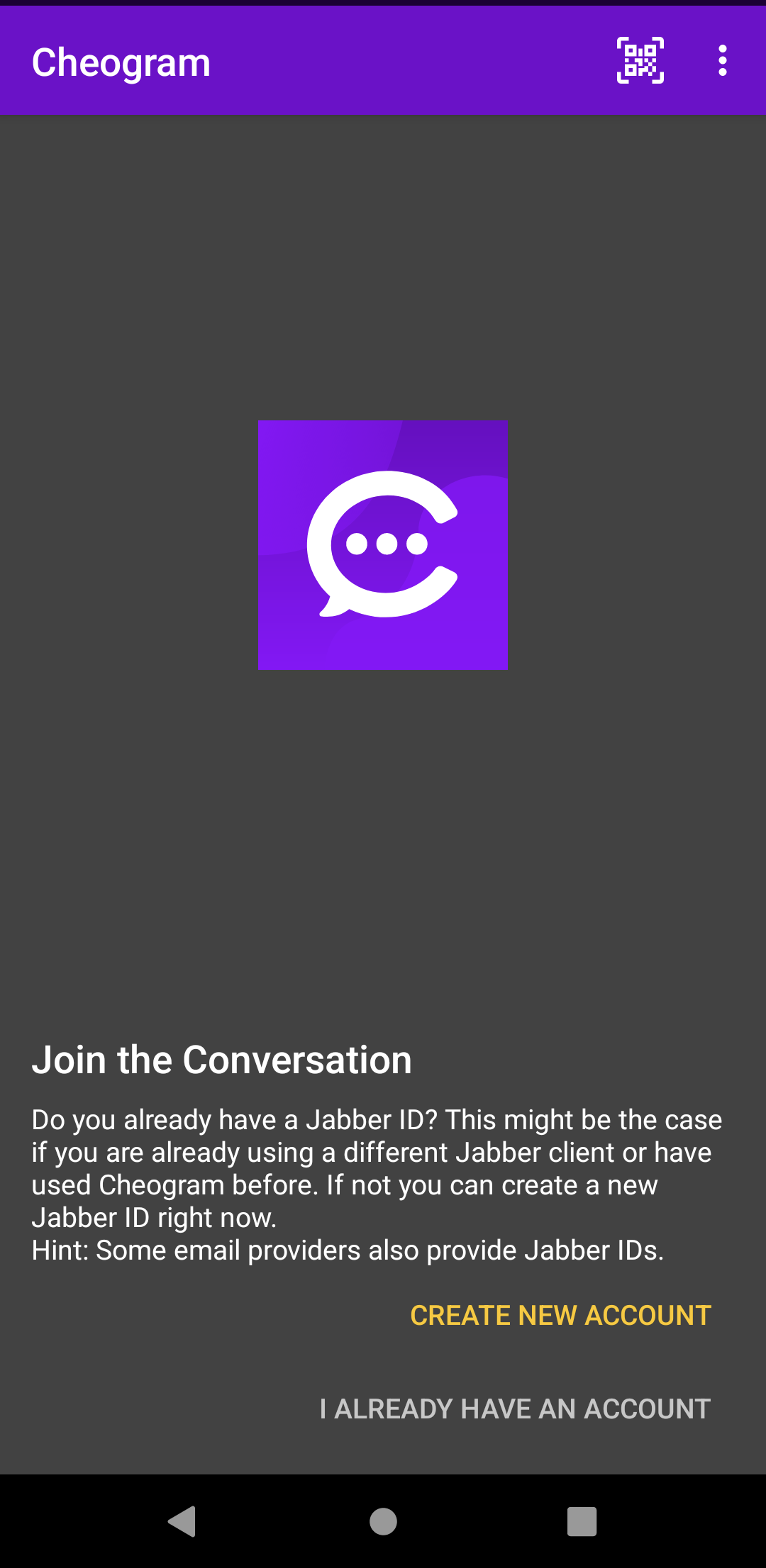
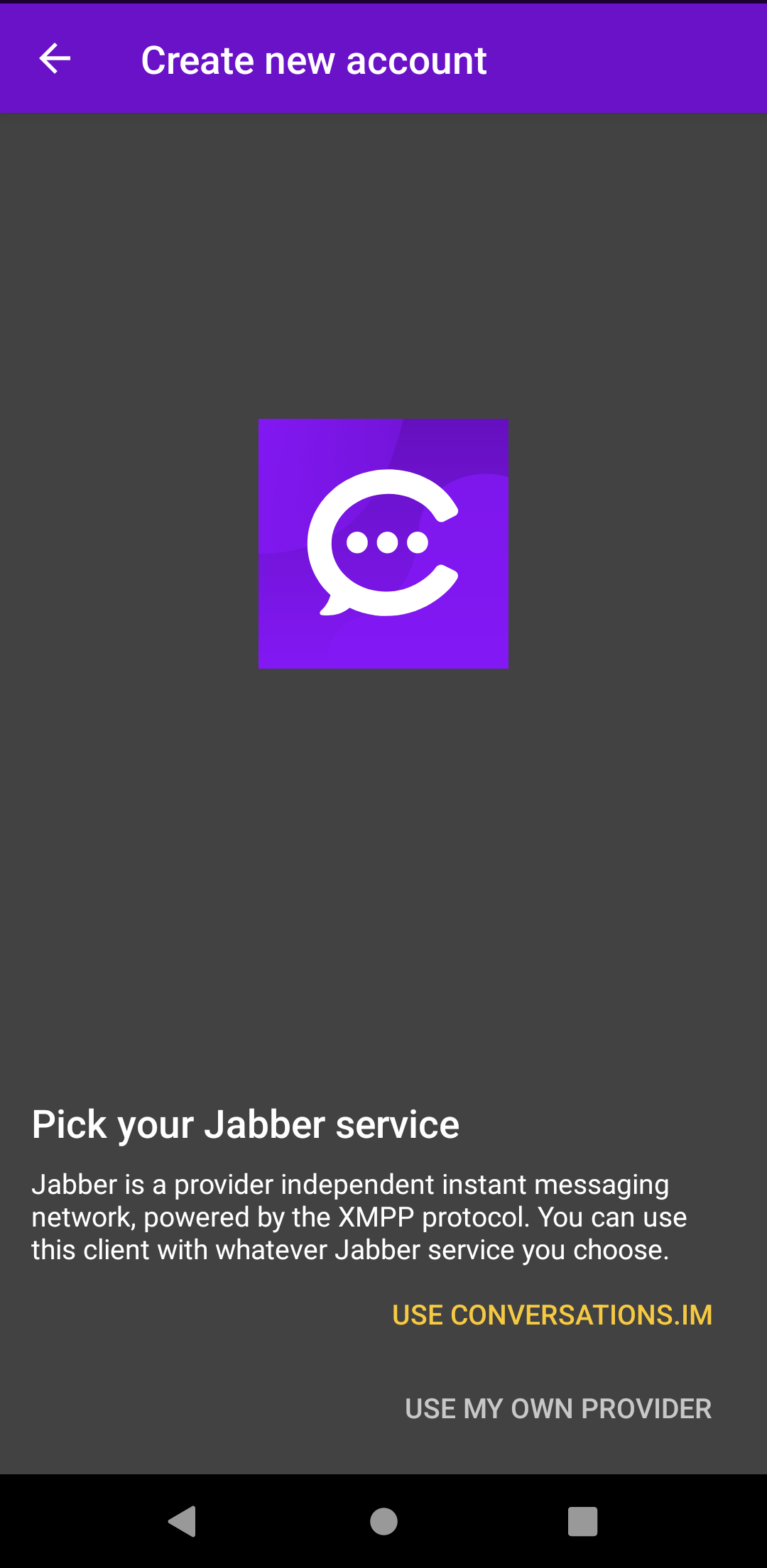
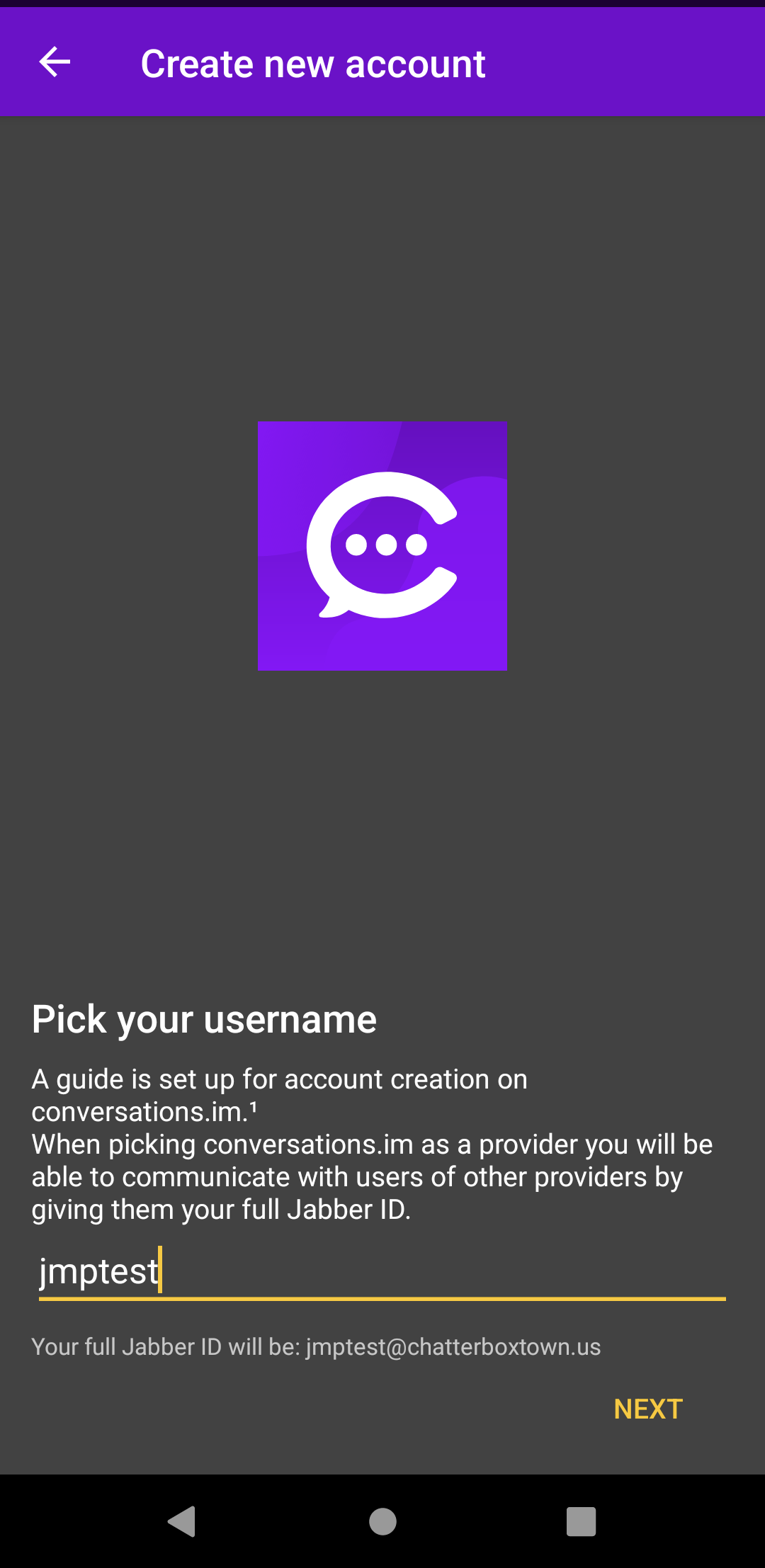
    We will first start with signing up from within your Jabber chat application on mobile, where you will never need to leave the client to get set up. I will be using the freedomware Android client Cheogram to do this signup. To start us off, we will need to create a Jabber ID (or “JID”). Upon first opening the app you will be presented with a welcome screen where you can choose to signup using the built-in flow for conversations.im or chatterboxtown.us, or you can choose your own custom server.

    Main Startup Screen Jabber Server Selection Account User Creation

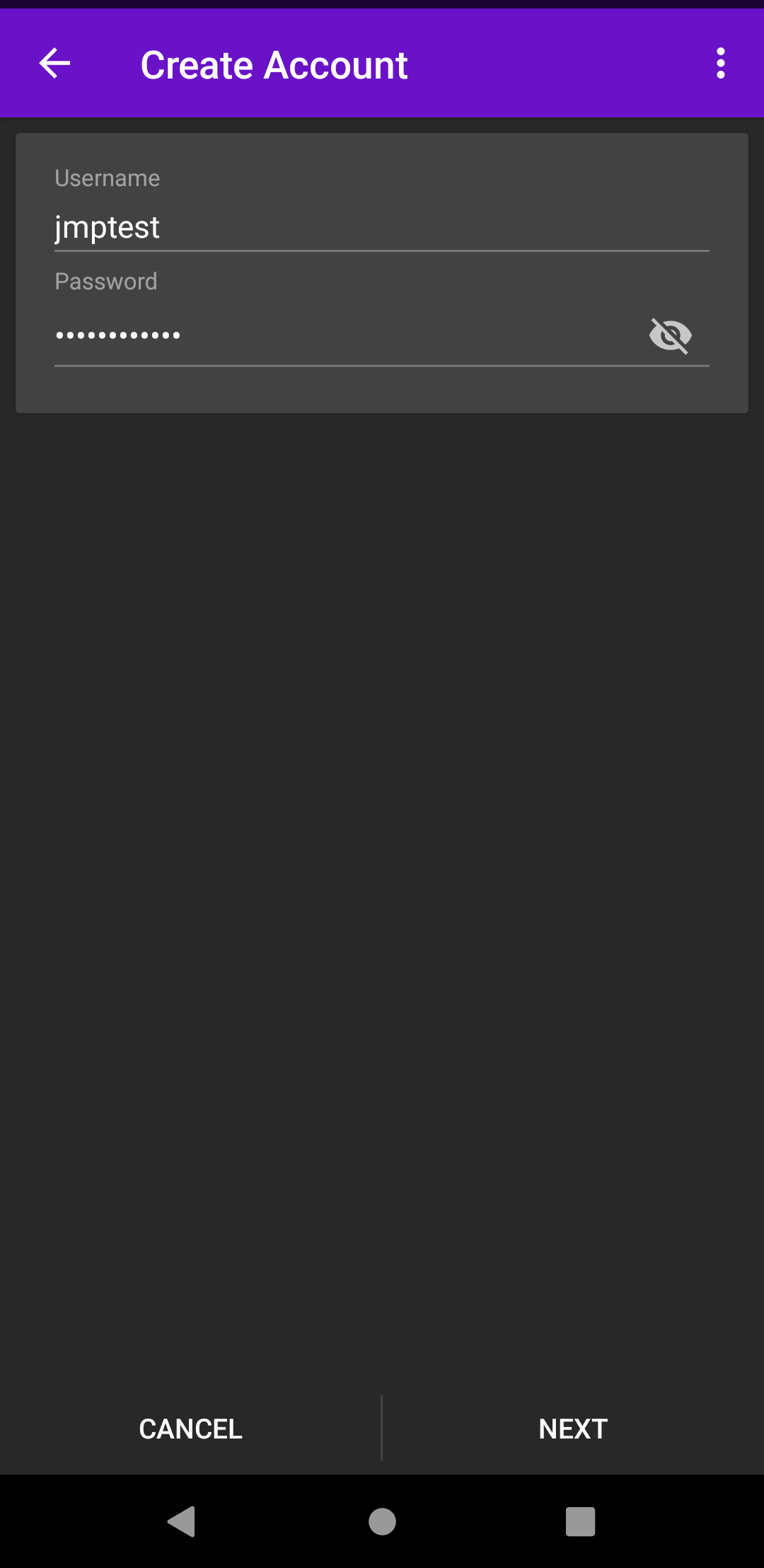
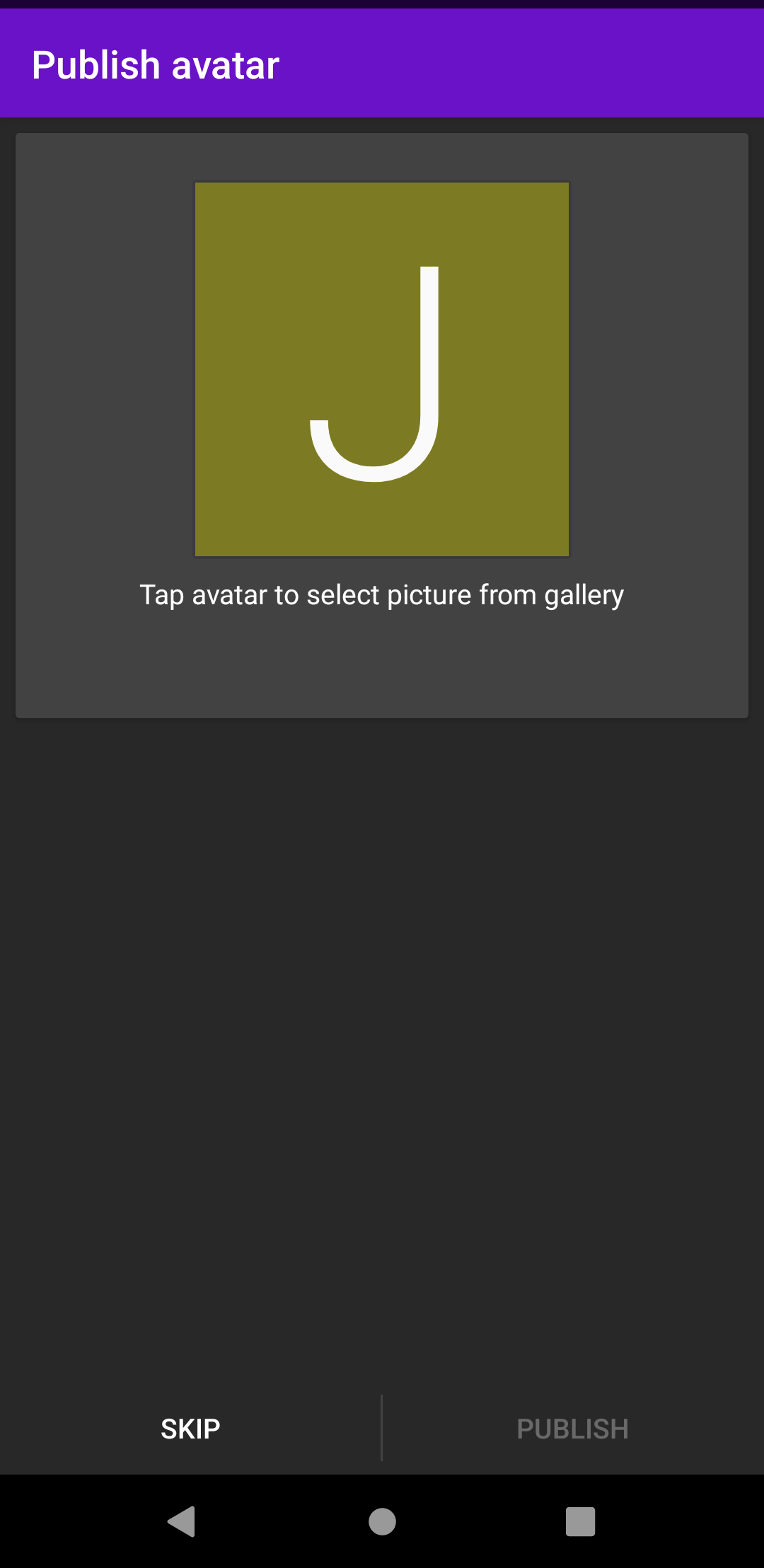
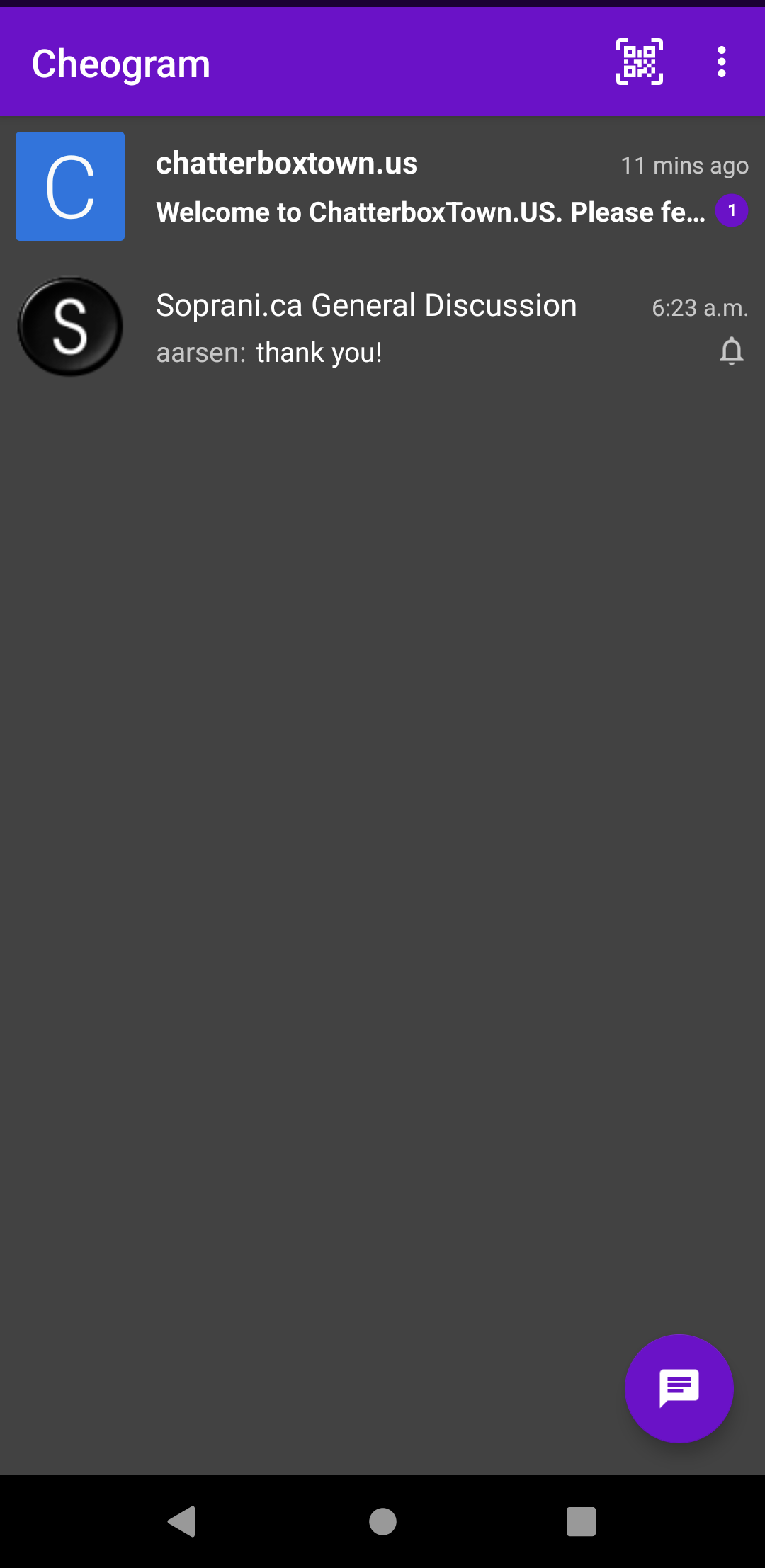
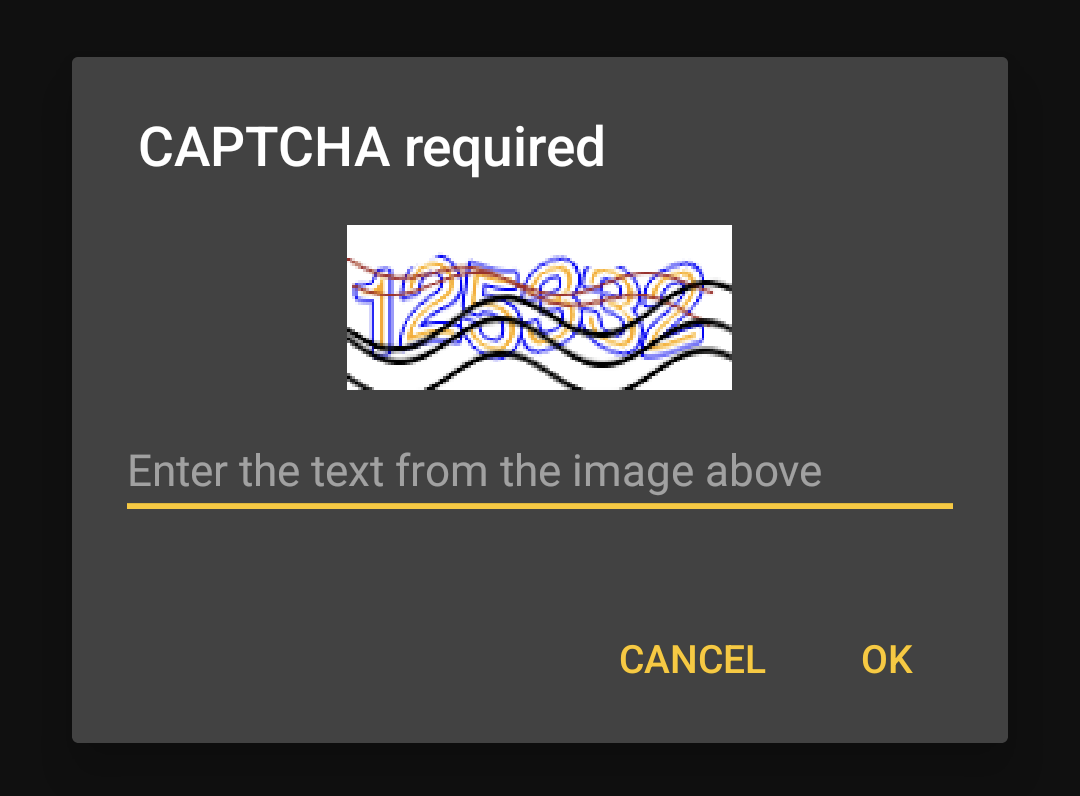
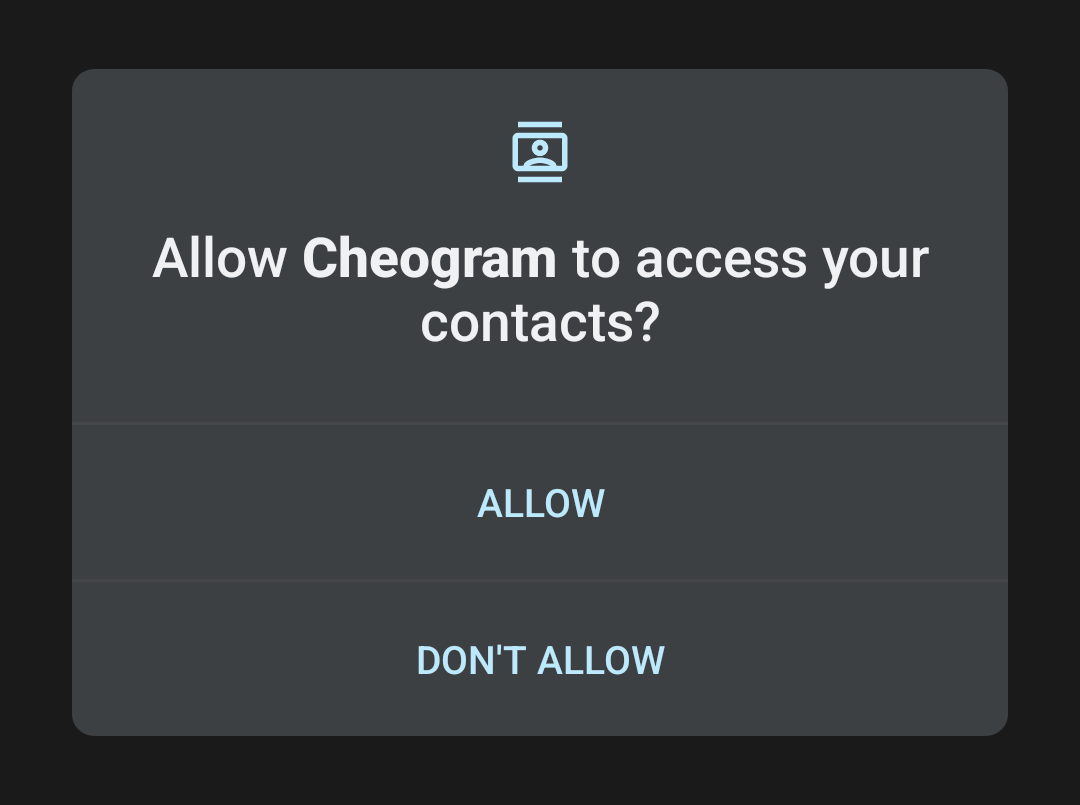
    We will choose chatterboxtown.us for the purposes of this guide, but you are definitely free to choose whatever service you like, or bring your own! On the first screen of the server signup it will ask you to enter a username; this can be anything you want as long as it isn’t already in use on the server. After tapping Next, it will ask you to create a password for this account; length does not seem to be limited so create one as long as you want. Do not forget it, or use a password manager to create/store the password! Tapping Next again will log you in and offer to set an avatar for your account, you can set one now or choose to do so at a later time, if at all. Once logged in to the new account, Cheogram will ask for permissions to your contacts, you can accept or deny them. Accepting will allow us to implement the integration, which we will explain at the end of this post.

    Password Creation Profile Avatar Main Chat Captcha Contacts Permissions Dialog

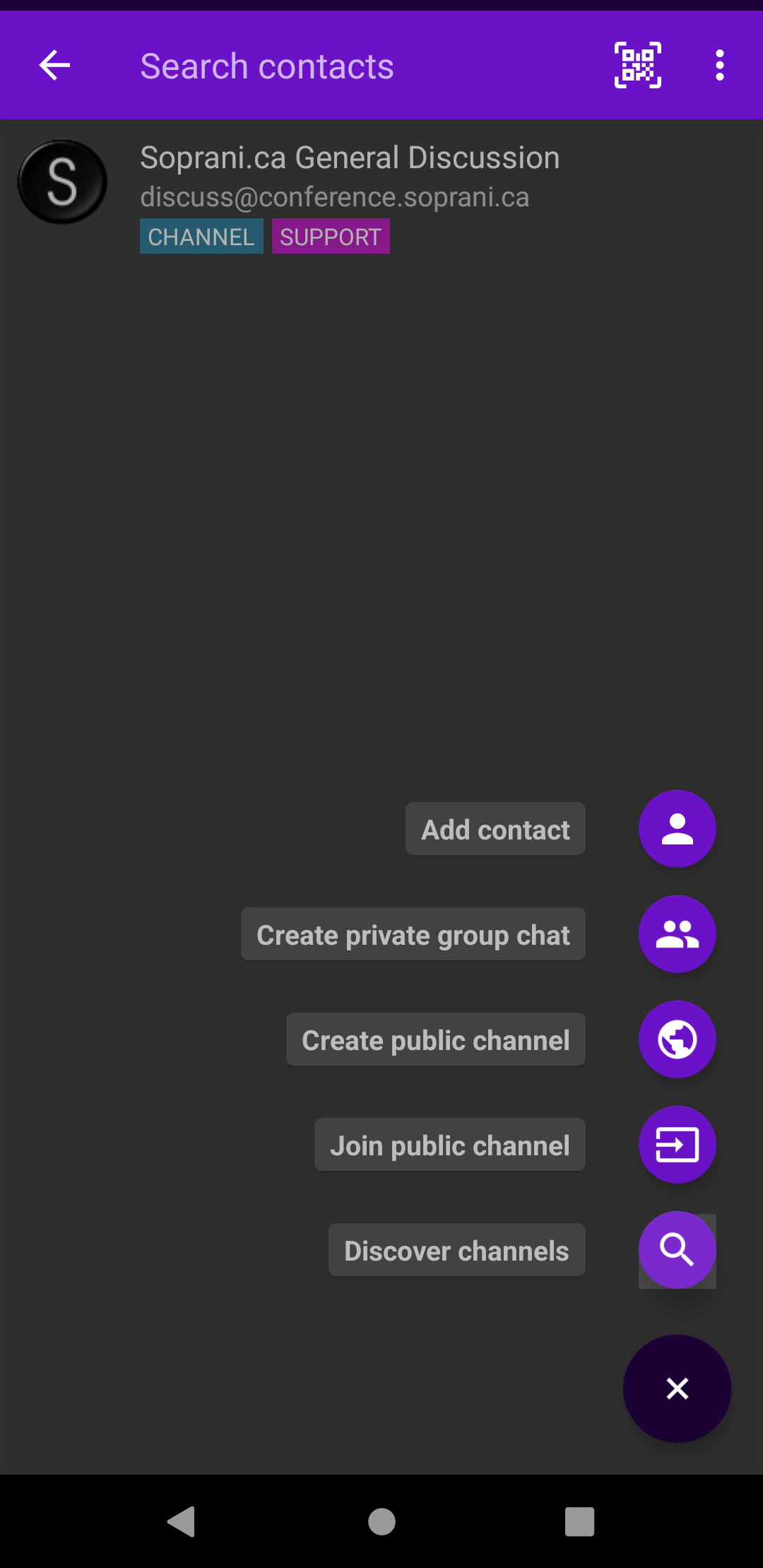
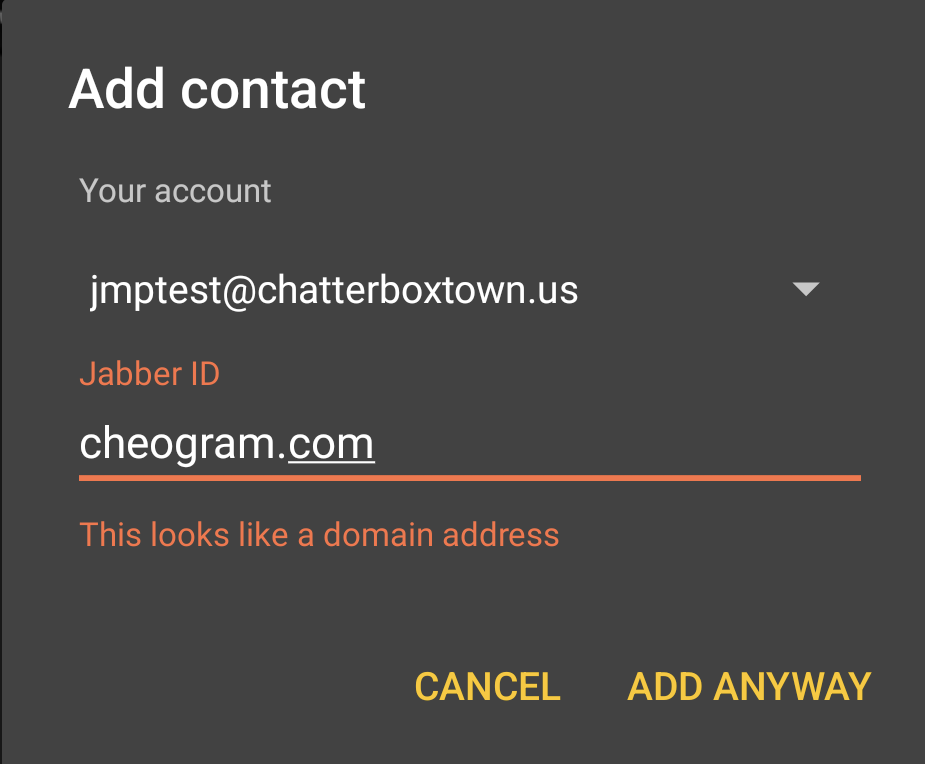
    Now the fun begins! First we will need to add the Cheogram bot as a contact before communicating with it. To do this tap the “chat” bubble icon in the lower right corner, it will change views as well as change to a “+” sign, tap it again, then tap “Add contact”. A dialog box will appear where you can type in a contact’s “Jabber ID”, here you will want to put cheogram.com and tap Add, it will provide a prompt saying that it “appears to be a domain”, so tap “add anyway” and then it will open the screen for the bot, most likely displaying the bot comands tab view.

    Chat Icon Press Add Contact Dialog Bot Commands Tab View

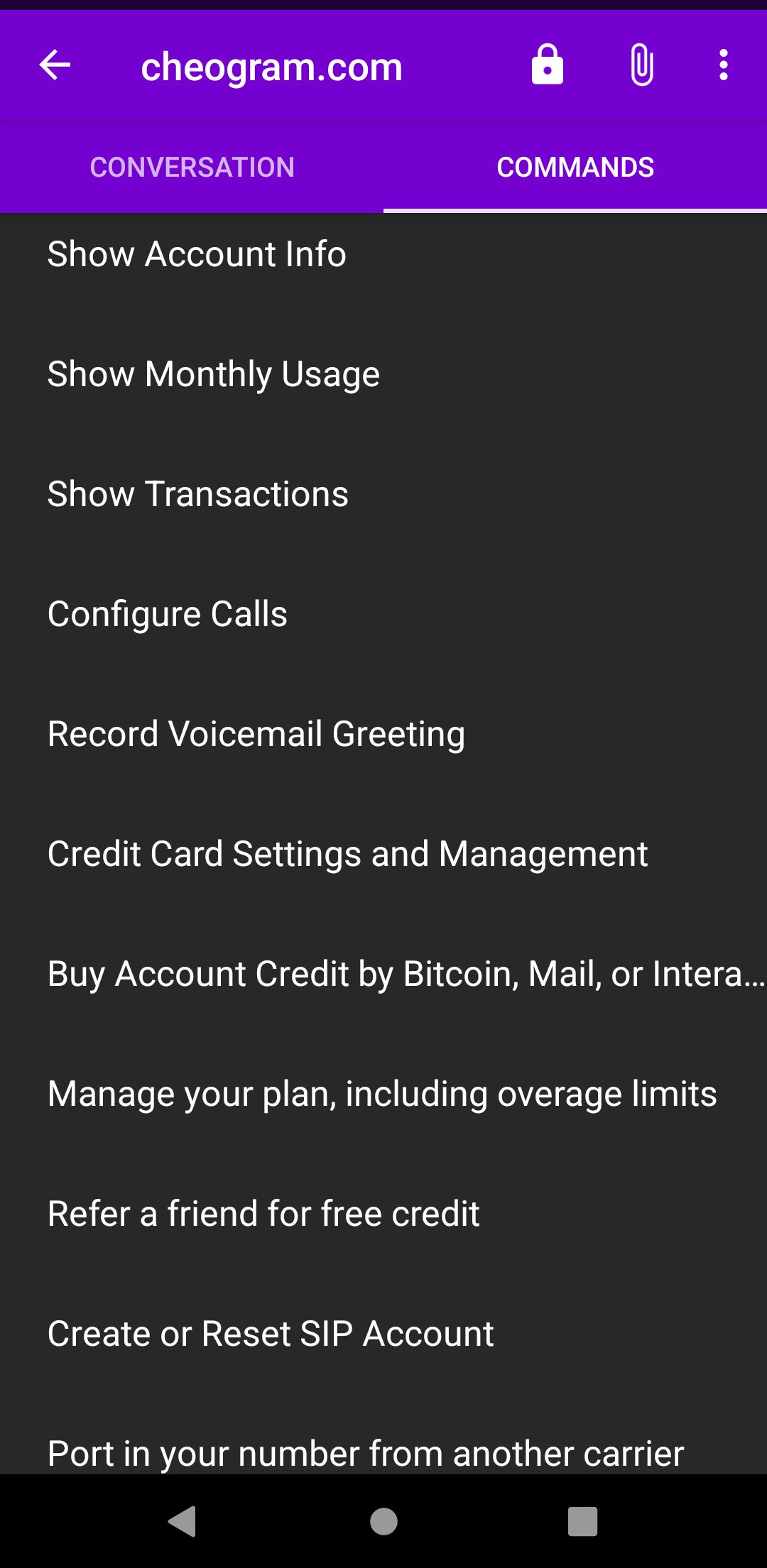
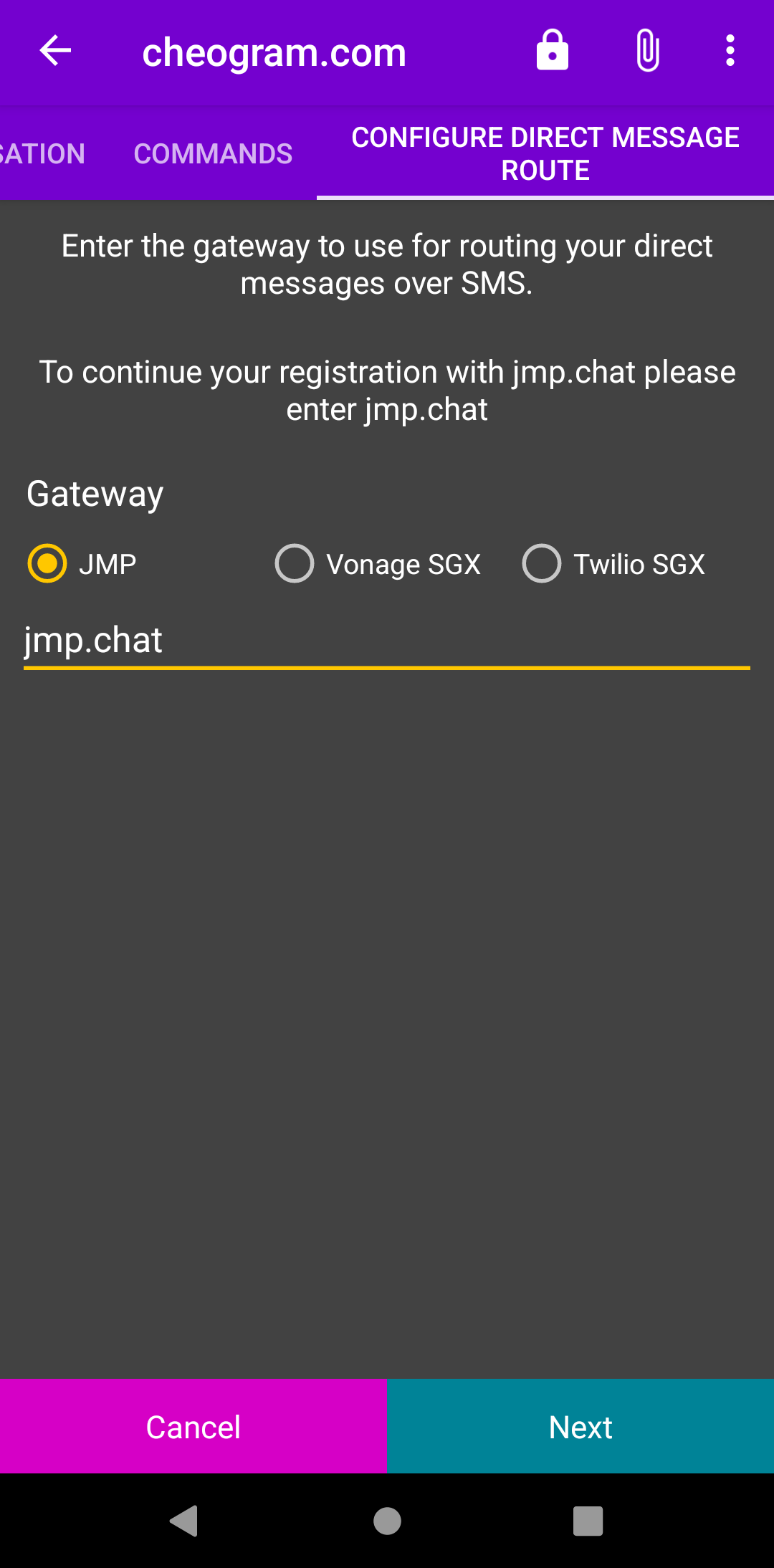
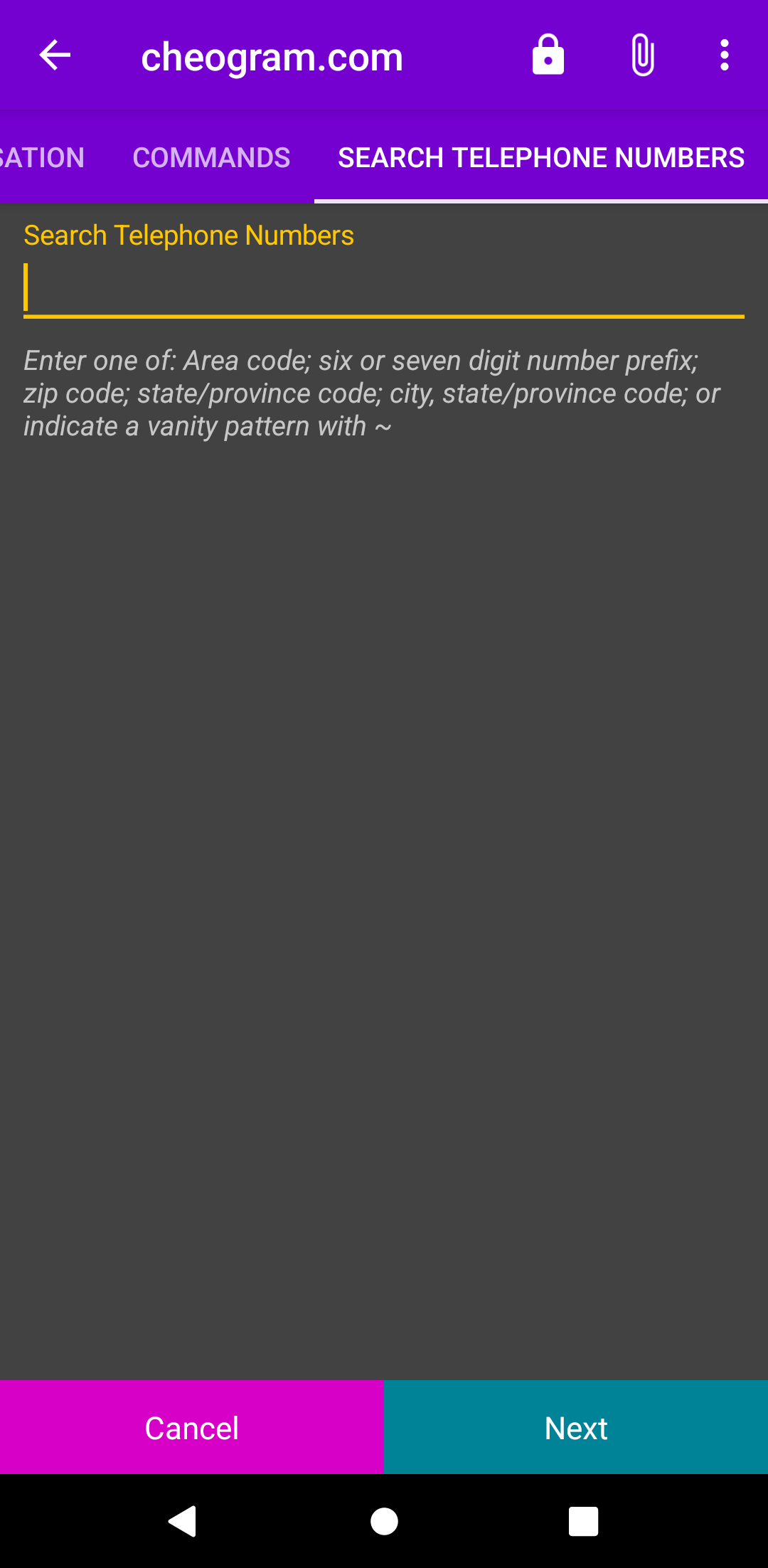
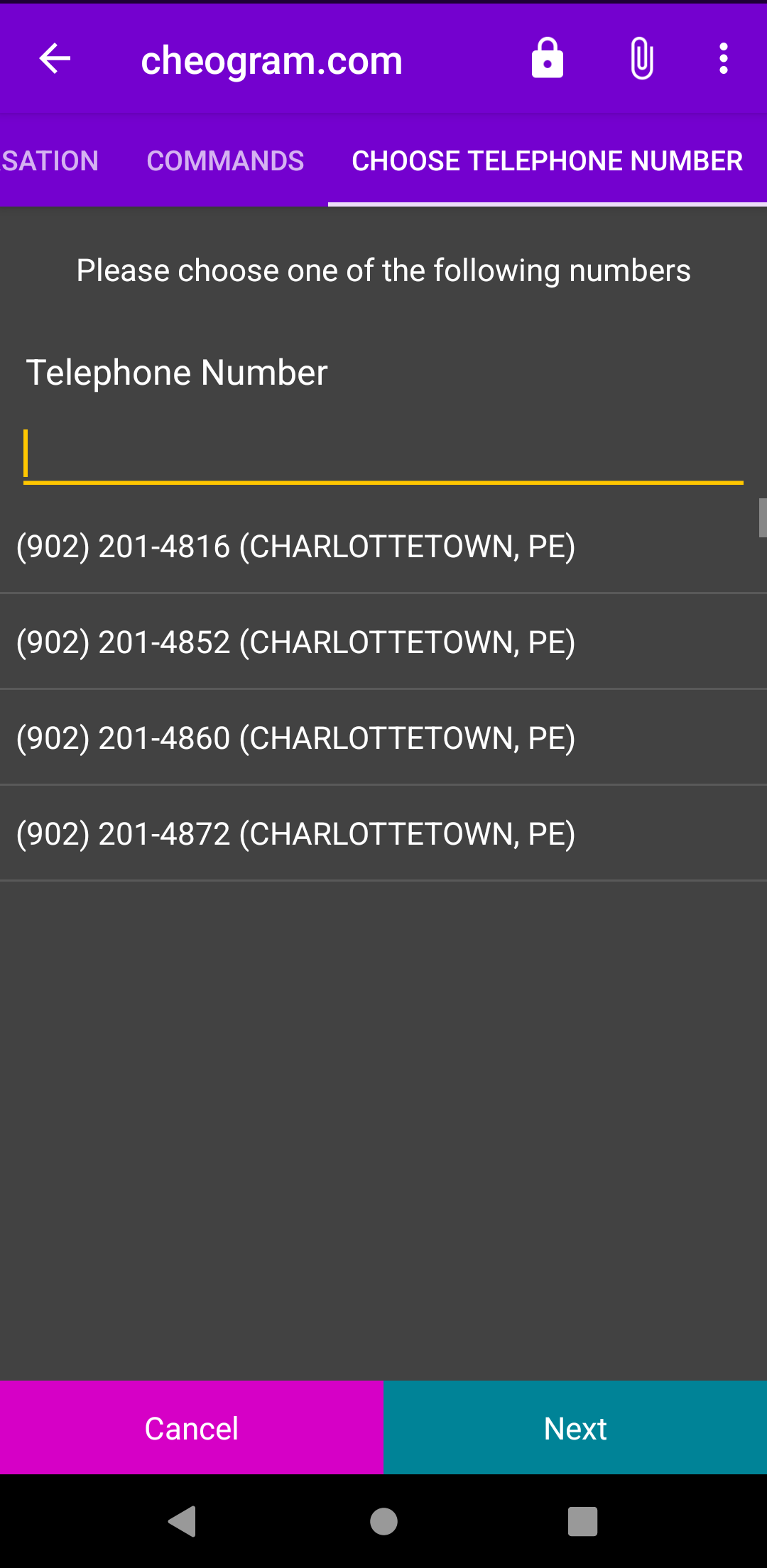
    From here you will get to see one of the features of the Cheogram app, the Command UI! When a chat first opens you will notice that a “tab” near the top will appear titled “Commands”; it is from within this tab that you can manage all the features and settings of your JMP account, but first we need to register an account, and you will notice there is only one command available right now, “register with backend”. You will want to tap this “register” command, and it will take you to the next step. Here you will choose the backend SGX you are wanting to use; this list includes the most popular community ones as well, but we need to select the JMP option. The next screen will ask you to enter a search term for selecting a number; this can be by area code, state/province, city&state/province, or lead with the tilde “~” character to indicate a vanity pattern. We have chosen areacode 902 which then shows us a list of numbers on the next screen; choose one and tap Next.

    Backend Selection Number Search Box Number Selection List

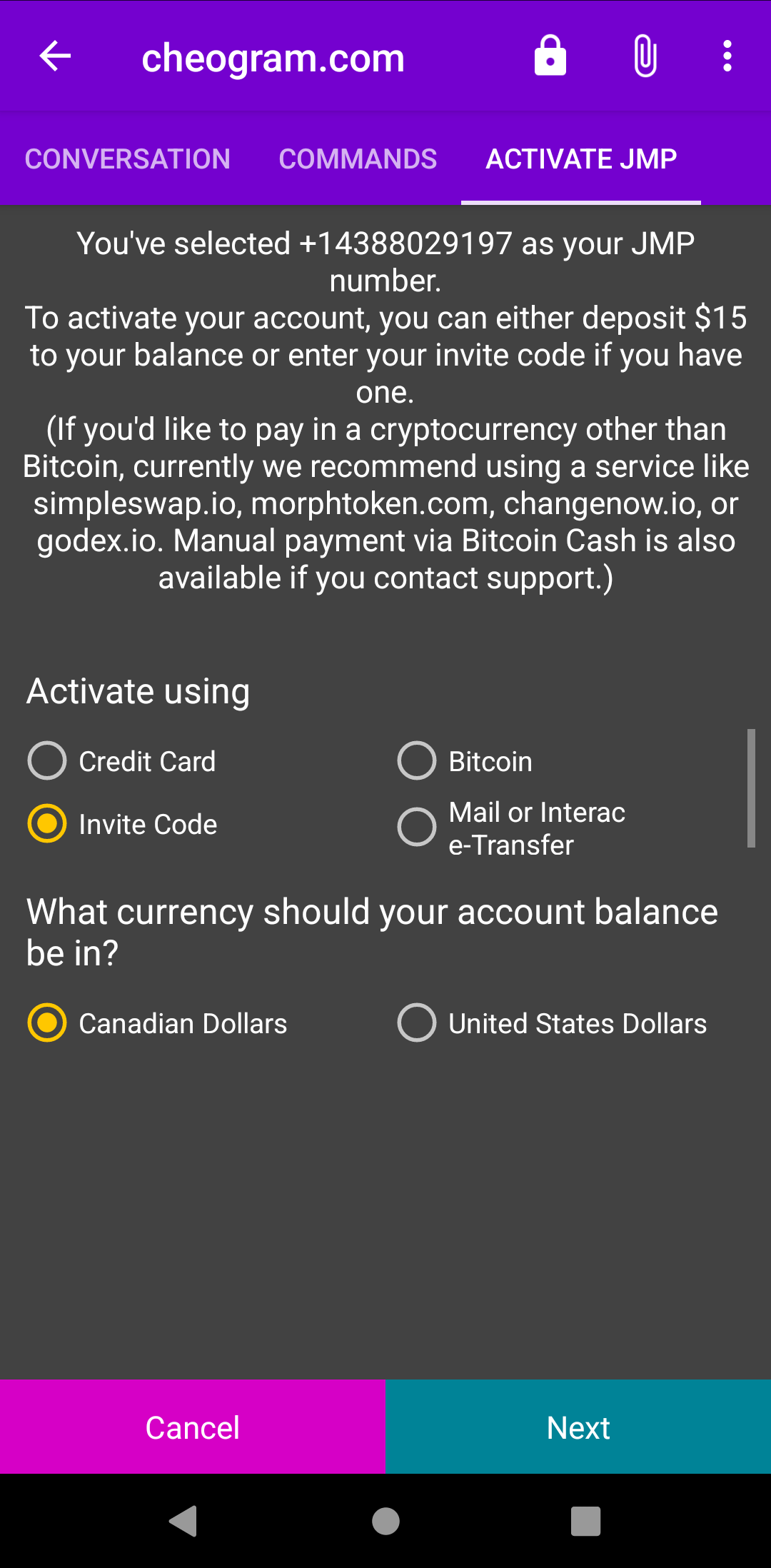
    On the following screen it will ask you how you wish to activate your account; you have four options: Credit Card, Invite Code, Bitcoin, and Mail or Interac e-Transfer, as well as what the base currency is that you want to use. For this tutorial we have chosen credit card and Canadian dollars. Tapping Next will give us a page rendered in-app where you can add a credit card to use for activation, and choose the amount of funds that will be auto-charged to your credit card when your balance drops below $5. If you clear this box before tapping save, it will disable the auto top-up feature on your account, tapping Next will finish the sign up process. You can now open the Commands tab again and check out the new commands available for your account; details on these commands will come in a seperate blog post.

    Currency and Payment Option Invite Code Activation Screen

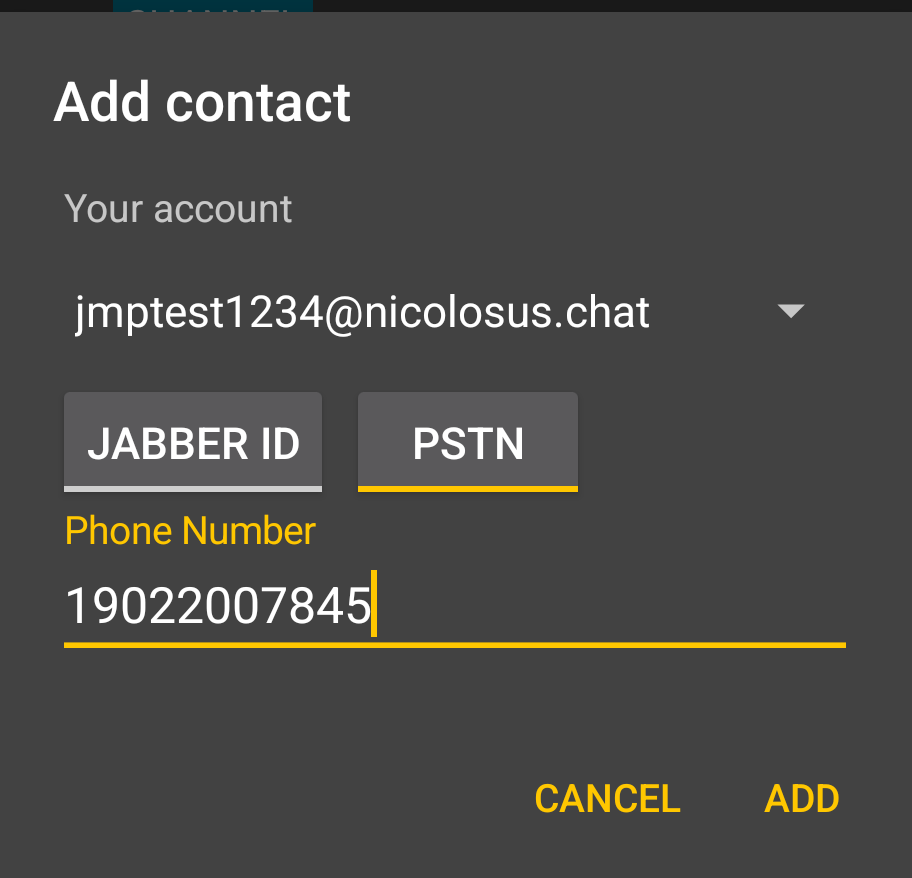
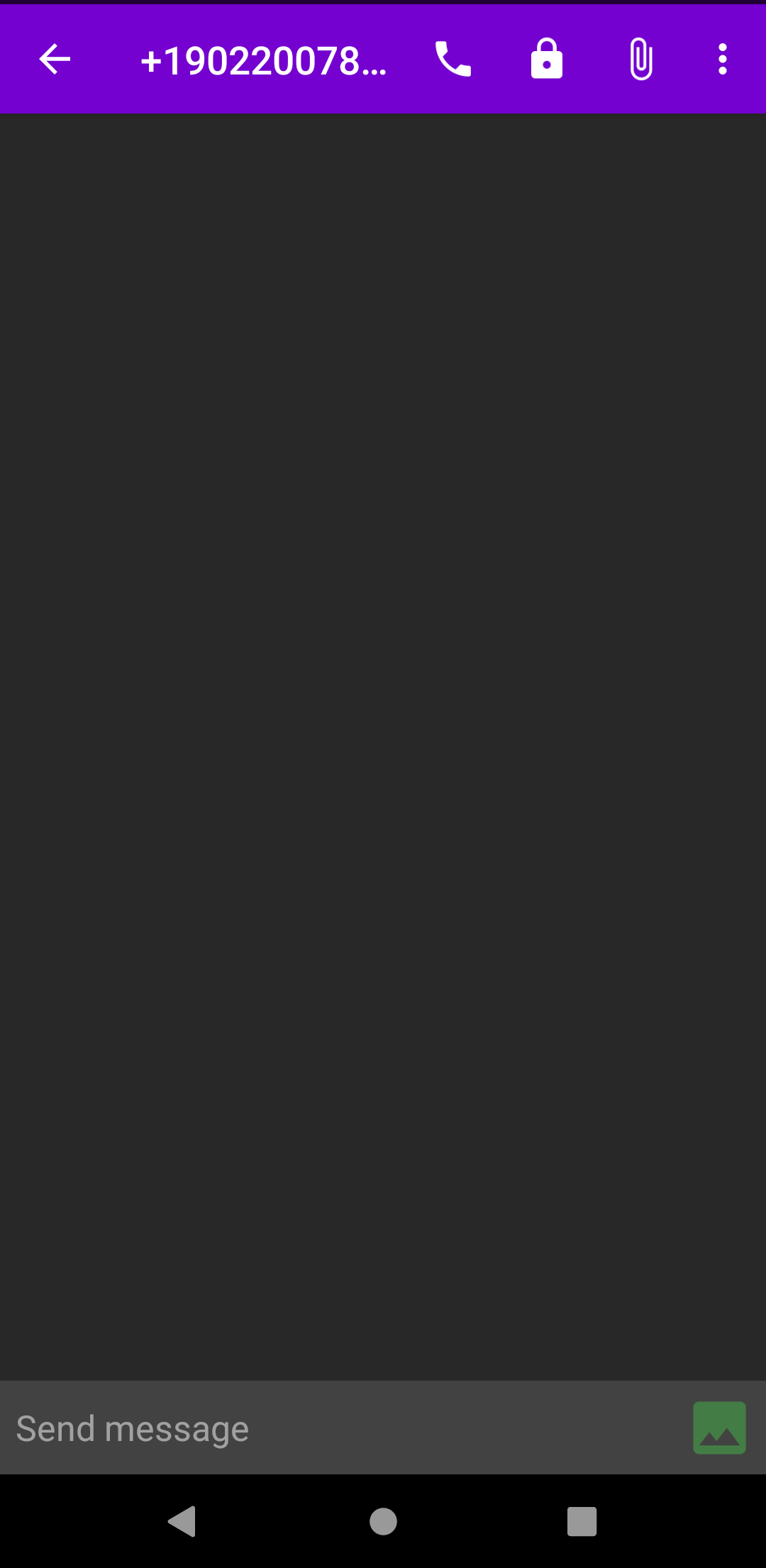
    Now that you have activated your account you are able to call (who really does this anymore, seriously? ;) ), SMS or MMS with your contacts. To add a contact within Cheogram is quite easy with the contacts integration. Now that the bot has been added to your account contacts, your device’s contacts should already be visible when you tap on the “chat” icon to start a new chat, or you can do the following to add a contact to your Jabber server. First tap the chat icon again like you did earlier to add the bot, tap the “+”, then “add contact”. The first thing you should notice that is different this time with the dialog box that pops up is that it now has two selectable buttons: Jabber ID, and PSTN. The PSTN option makes adding telephone numbers for calling or sending SMS to very easy, just type out the phone number you wish to add to your contacts and then tap ADD. This will automatically format the phone number according to the locale detected on your device. If you need to add an international number, you will need to add the phone in the full international format to override the country code being automatically added. With the contact now added, you can either start typing out a message, or tap the “phone” icon that appears at the top to make an audio call to the contact. Images, videos and audio files can also be sent using a number from JMP.

    Bot Commands PSTN Contact Dialog Conversation View

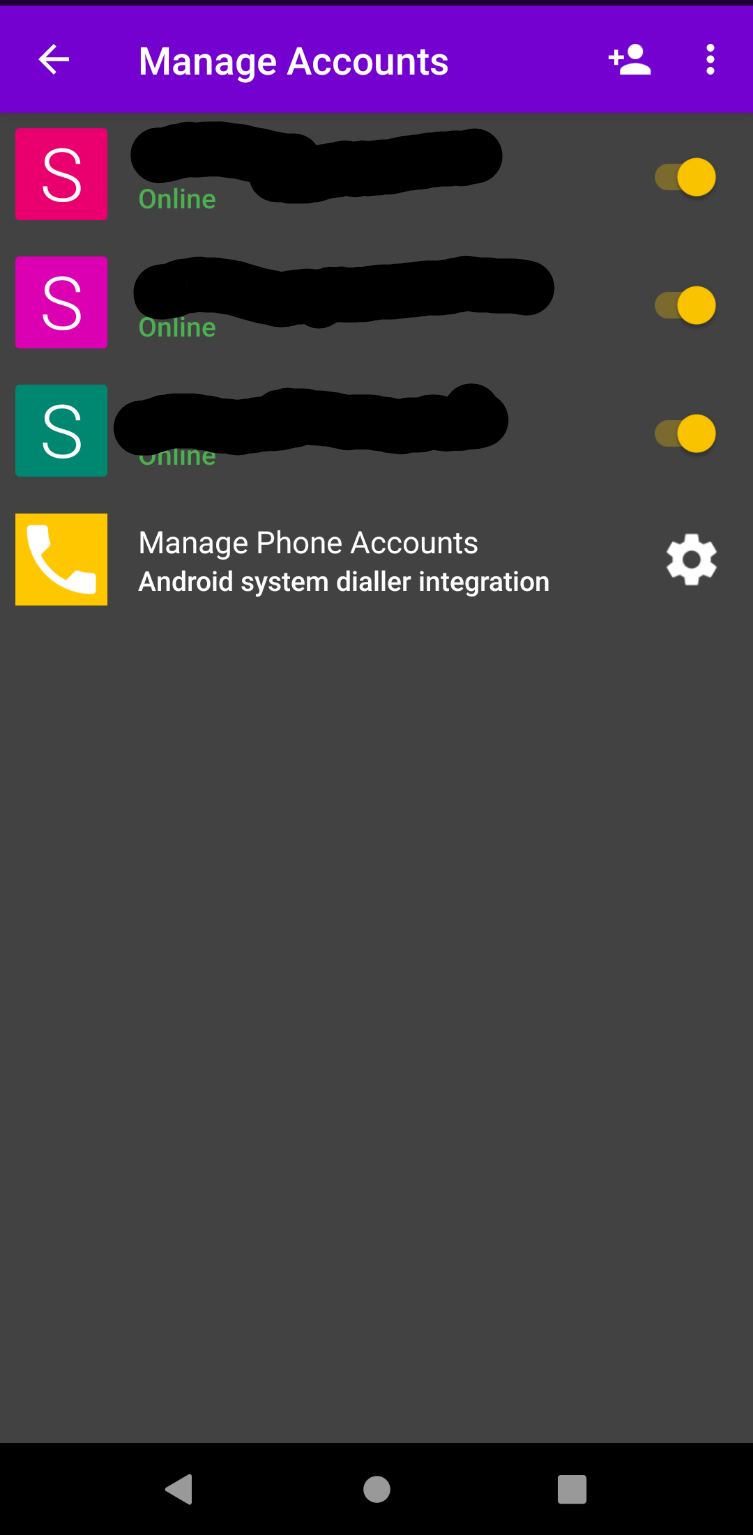
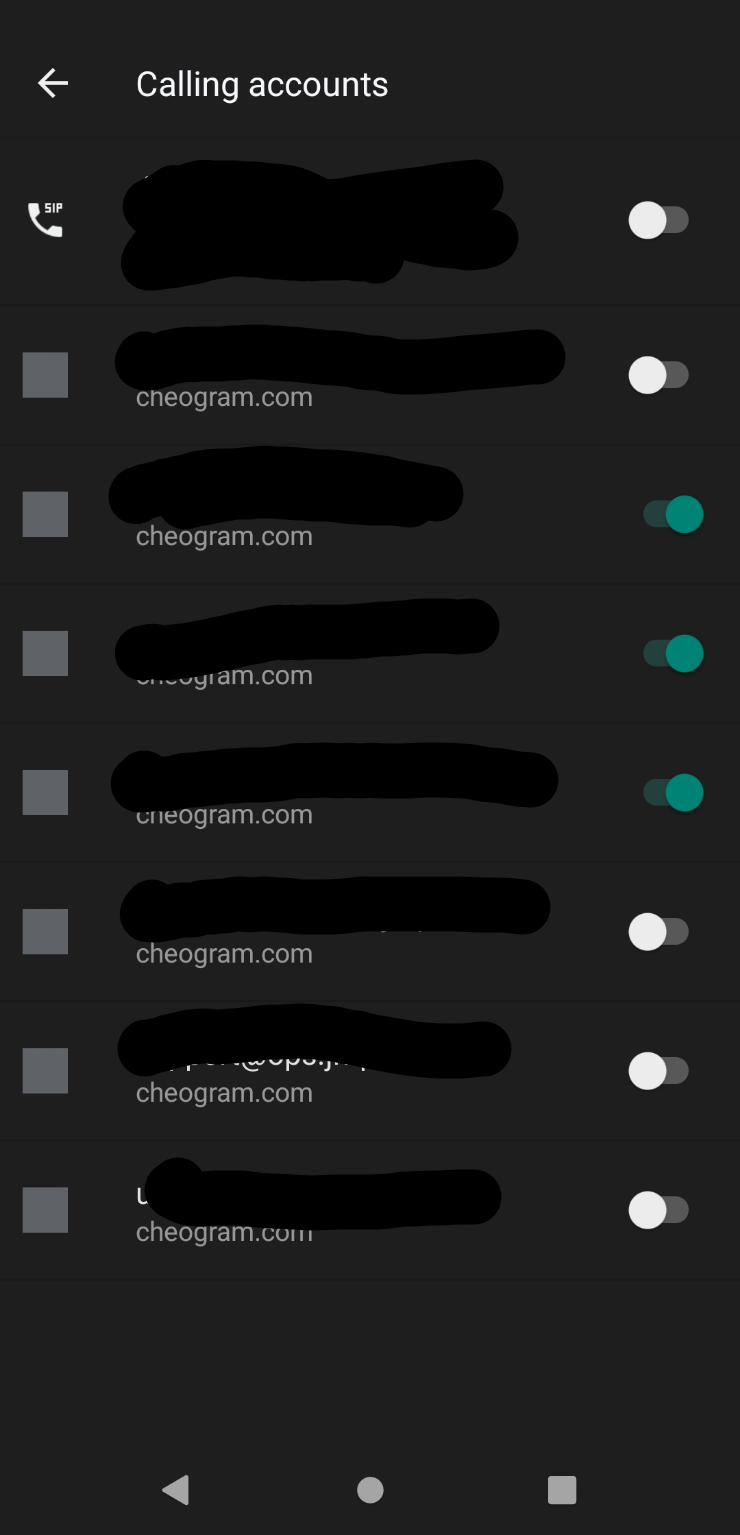
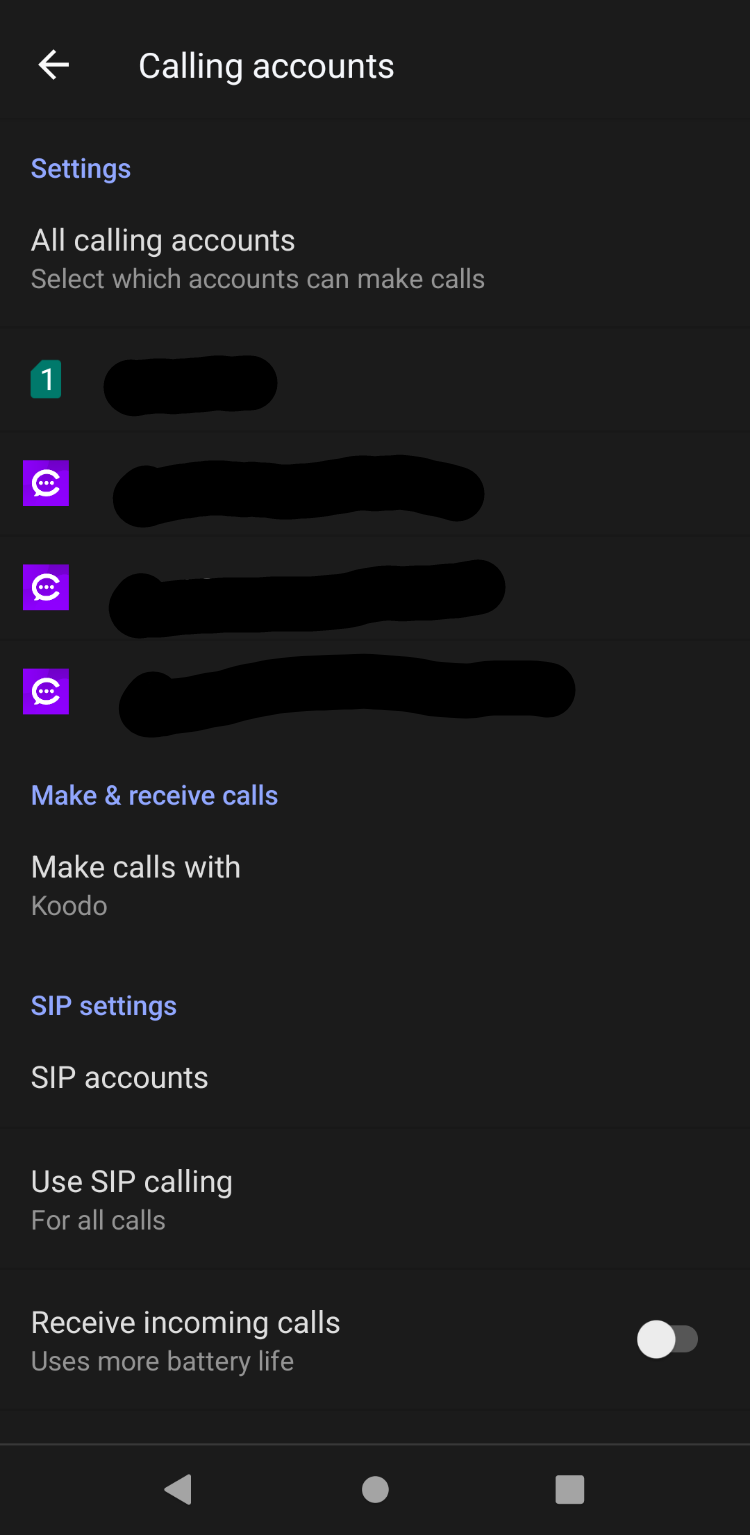
    Another helpful feature of the Cheogram app is native dialer integration. This allows you to make phone calls straight from your dialer just like any other phone call. To enable this, tap on the 3-dot menu in the top right of the main Cheogram screen, and then tap on Manage Accounts. Here you should see a new option under your account(s) that says “Manage Phone Accounts”, tap on that title and it will take you to a system settings page where you can enable your Jabber ID to make and receive calls, tap the toggle next to the account you want to enable. Now go back to your Manage Accounts screen in Cheogram and then tap the “gear” icon and from this second system settings page, you can select which “calling account” is your default, or to require it to always ask what account you want to use. Do note that there is currently a known bug in Android where this setting will reset after every reboot of the device, there currenltly is no fix out and Google says it will be fixed in a later release version of Android.

    Manage Accounts Screen System Dialing Accounts Default Dialling Accounts

    • Pl chevron_right

      JMP: Signup with Cheogram Android

      news.movim.eu / PlanetJabber • 30 August 2022 • 5 minutes

    Welcome to JMP.chat ! If you are looking for a simple guide on how to sign up for JMP, then you have come to the right place! We will be keeping this guide up-to-date if there is ever a change in how to sign up.

    We will first start with signing up from within your Jabber chat application on mobile, where you will never need to leave the client to get set up. I will be using the freedomware Android client Cheogram to do this signup. To start us off, we will need to create a Jabber ID (or “JID”). Upon first opening the app you will be presented with a welcome screen where you can choose to signup using the built-in flow for conversations.im or chatterboxtown.us, or you can choose your own custom server.

    Main Startup Screen Jabber Server Selection Account User Creation

    We will choose chatterboxtown.us for the purposes of this guide, but you are definitely free to choose whatever service you like, or bring your own! On the first screen of the server signup it will ask you to enter a username; this can be anything you want as long as it isn’t already in use on the server. After tapping Next, it will ask you to create a password for this account; length does not seem to be limited so create one as long as you want. Do not forget it, or use a password manager to create/store the password! Tapping Next again will log you in and offer to set an avatar for your account, you can set one now or choose to do so at a later time, if at all. Once logged in to the new account, Cheogram will ask for permissions to your contacts, you can accept or deny them. Accepting will allow us to implement the integration, which we will explain at the end of this post.

    Password Creation Profile Avatar Main Chat Captcha Contacts Permissions Dialog

    Now the fun begins! First we will need to add the Cheogram bot as a contact before communicating with it. To do this tap the “chat” bubble icon in the lower right corner, it will change views as well as change to a “+” sign, tap it again, then tap “Add contact”. A dialog box will appear where you can type in a contact’s “Jabber ID”, here you will want to put cheogram.com and tap Add, it will provide a prompt saying that it “appears to be a domain”, so tap “add anyway” and then it will open the screen for the bot, most likely displaying the bot comands tab view.

    Chat Icon Press Add Contact Dialog Bot Commands Tab View

    From here you will get to see one of the features of the Cheogram app, the Command UI! When a chat first opens you will notice that a “tab” near the top will appear titled “Commands”; it is from within this tab that you can manage all the features and settings of your JMP account, but first we need to register an account, and you will notice there is only one command available right now, “register with backend”. You will want to tap this “register” command, and it will take you to the next step. Here you will choose the backend SGX you are wanting to use; this list includes the most popular community ones as well, but we need to select the JMP option. The next screen will ask you to enter a search term for selecting a number; this can be by area code, state/province, city&state/province, or lead with the tilde “~” character to indicate a vanity pattern. We have chosen areacode 902 which then shows us a list of numbers on the next screen; choose one and tap Next.

    Backend Selection Number Search Box Number Selection List

    On the following screen it will ask you how you wish to activate your account; you have four options: Credit Card, Invite Code, Bitcoin, and Mail or Interac e-Transfer, as well as what the base currency is that you want to use. For this tutorial we have chosen credit card and Canadian dollars. Tapping Next will give us a page rendered in-app where you can add a credit card to use for activation, and choose the amount of funds that will be auto-charged to your credit card when your balance drops below $5. If you clear this box before tapping save, it will disable the auto top-up feature on your account, tapping Next will finish the sign up process. You can now open the Commands tab again and check out the new commands available for your account; details on these commands will come in a seperate blog post.

    Currency and Payment Option Invite Code Activation Screen

    Now that you have activated your account you are able to call (who really does this anymore, seriously? ;) ), SMS or MMS with your contacts. To add a contact within Cheogram is quite easy with the contacts integration. Now that the bot has been added to your account contacts, your device’s contacts should already be visible when you tap on the “chat” icon to start a new chat, or you can do the following to add a contact to your Jabber server. First tap the chat icon again like you did earlier to add the bot, tap the “+”, then “add contact”. The first thing you should notice that is different this time with the dialog box that pops up is that it now has two selectable buttons: Jabber ID, and PSTN. The PSTN option makes adding telephone numbers for calling or sending SMS to very easy, just type out the phone number you wish to add to your contacts and then tap ADD. This will automatically format the phone number according to the locale detected on your device. If you need to add an international number, you will need to add the phone in the full international format to override the country code being automatically added. With the contact now added, you can either start typing out a message, or tap the “phone” icon that appears at the top to make an audio call to the contact. Images, videos and audio files can also be sent using a number from JMP.

    Bot Commands PSTN Contact Dialog Conversation View

    Another helpful feature of the Cheogram app is native dialer integration. This allows you to make phone calls straight from your dialer just like any other phone call. To enable this, tap on the 3-dot menu in the top right of the main Cheogram screen, and then tap on Manage Accounts. Here you should see a new option under your account(s) that says “Manage Phone Accounts”, tap on that title and it will take you to a system settings page where you can enable your Jabber ID to make and receive calls, tap the toggle next to the account you want to enable. Now go back to your Manage Accounts screen in Cheogram and then tap the “gear” icon and from this second system settings page, you can select which “calling account” is your default, or to require it to always ask what account you want to use. Do note that there is currently a known bug in Android where this setting will reset after every reboot of the device, there currenltly is no fix out and Google says it will be fixed in a later release version of Android.

    Manage Accounts Screen System Dialing Accounts Default Dialling Accounts

    • Pl chevron_right

      JMP: Signup with Cheogram Android

      news.movim.eu / PlanetJabber • 30 August 2022 • 5 minutes

    Welcome to JMP.chat ! If you are looking for a simple guide on how to sign up for JMP, then you have come to the right place! We will be keeping this guide up-to-date if there is ever a change in how to sign up.

    We will first start with signing up from within your Jabber chat application on mobile, where you will never need to leave the client to get set up. I will be using the freedomware Android client Cheogram to do this signup. To start us off, we will need to create a Jabber ID (or “JID”). Upon first opening the app you will be presented with a welcome screen where you can choose to signup using the built-in flow for conversations.im or chatterboxtown.us, or you can choose your own custom server.

    Main Startup Screen Jabber Server Selection Account User Creation

    We will choose chatterboxtown.us for the purposes of this guide, but you are definitely free to choose whatever service you like, or bring your own! On the first screen of the server signup it will ask you to enter a username; this can be anything you want as long as it isn’t already in use on the server. After tapping Next, it will ask you to create a password for this account; length does not seem to be limited so create one as long as you want. Do not forget it, or use a password manager to create/store the password! Tapping Next again will log you in and offer to set an avatar for your account, you can set one now or choose to do so at a later time, if at all. Once logged in to the new account, Cheogram will ask for permissions to your contacts, you can accept or deny them. Accepting will allow us to implement the integration, which we will explain at the end of this post.

    Password Creation Profile Avatar Main Chat Captcha Contacts Permissions Dialog

    Now the fun begins! First we will need to add the Cheogram bot as a contact before communicating with it. To do this tap the “chat” bubble icon in the lower right corner, it will change views as well as change to a “+” sign, tap it again, then tap “Add contact”. A dialog box will appear where you can type in a contact’s “Jabber ID”, here you will want to put cheogram.com and tap Add, it will provide a prompt saying that it “appears to be a domain”, so tap “add anyway” and then it will open the screen for the bot, most likely displaying the bot comands tab view.

    Chat Icon Press Add Contact Dialog Bot Commands Tab View

    From here you will get to see one of the features of the Cheogram app, the Command UI! When a chat first opens you will notice that a “tab” near the top will appear titled “Commands”; it is from within this tab that you can manage all the features and settings of your JMP account, but first we need to register an account, and you will notice there is only one command available right now, “register with backend”. You will want to tap this “register” command, and it will take you to the next step. Here you will choose the backend SGX you are wanting to use; this list includes the most popular community ones as well, but we need to select the JMP option. The next screen will ask you to enter a search term for selecting a number; this can be by area code, state/province, city&state/province, or lead with the tilde “~” character to indicate a vanity pattern. We have chosen areacode 902 which then shows us a list of numbers on the next screen; choose one and tap Next.

    Backend Selection Number Search Box Number Selection List

    On the following screen it will ask you how you wish to activate your account; you have four options: Credit Card, Invite Code, Bitcoin, and Mail or Interac e-Transfer, as well as what the base currency is that you want to use. For this tutorial we have chosen credit card and Canadian dollars. Tapping Next will give us a page rendered in-app where you can add a credit card to use for activation, and choose the amount of funds that will be auto-charged to your credit card when your balance drops below $5. If you clear this box before tapping save, it will disable the auto top-up feature on your account, tapping Next will finish the sign up process. You can now open the Commands tab again and check out the new commands available for your account; details on these commands will come in a seperate blog post.

    Currency and Payment Option Invite Code Activation Screen

    Now that you have activated your account you are able to call (who really does this anymore, seriously? ;) ), SMS or MMS with your contacts. To add a contact within Cheogram is quite easy with the contacts integration. Now that the bot has been added to your account contacts, your device’s contacts should already be visible when you tap on the “chat” icon to start a new chat, or you can do the following to add a contact to your Jabber server. First tap the chat icon again like you did earlier to add the bot, tap the “+”, then “add contact”. The first thing you should notice that is different this time with the dialog box that pops up is that it now has two selectable buttons: Jabber ID, and PSTN. The PSTN option makes adding telephone numbers for calling or sending SMS to very easy, just type out the phone number you wish to add to your contacts and then tap ADD. This will automatically format the phone number according to the locale detected on your device. If you need to add an international number, you will need to add the phone in the full international format to override the country code being automatically added. With the contact now added, you can either start typing out a message, or tap the “phone” icon that appears at the top to make an audio call to the contact. Images, videos and audio files can also be sent using a number from JMP.

    Bot Commands PSTN Contact Dialog Conversation View

    Another helpful feature of the Cheogram app is native dialer integration. This allows you to make phone calls straight from your dialer just like any other phone call. To enable this, tap on the 3-dot menu in the top right of the main Cheogram screen, and then tap on Manage Accounts. Here you should see a new option under your account(s) that says “Manage Phone Accounts”, tap on that title and it will take you to a system settings page where you can enable your Jabber ID to make and receive calls, tap the toggle next to the account you want to enable. Now go back to your Manage Accounts screen in Cheogram and then tap the “gear” icon and from this second system settings page, you can select which “calling account” is your default, or to require it to always ask what account you want to use. Do note that there is currently a known bug in Android where this setting will reset after every reboot of the device, there currenltly is no fix out and Google says it will be fixed in a later release version of Android.

    Manage Accounts Screen System Dialing Accounts Default Dialling Accounts

    • Pl chevron_right

      Erlang Solutions: Implementing Go Fish to Learn Elixir

      news.movim.eu / PlanetJabber • 25 August 2022 • 8 minutes

    A walkthrough of how we implemented GoFish as a way of learning Elixir and the concepts of the BEAM and OTP.


    Intro

    In this article, we will outline our initial design and implementation of the card game Go Fish in Elixir using raw processes, and then describe how we were motivated to re-implement the project using the GenServer module instead. The first step is to agree upon the rules of the game, then describe the domain model and non-functional requirements, and from these we can design the solution using sequence diagrams for various scenarios.

    Based on this design, we then implement it in code. We are using Test Driven Development, meaning we start by writing a failing test and then make it pass by implementing the code for it. This approach reduces debugging times and encourages clean and simple code solutions.

    It’s important to note that, while this blog post is presented in a logical order, in reality, we arrived at the eventual solution iteratively. For example, several sequence diagrams have been discarded to reach the ones we present here.

    Go Fish rules

    These are the rules we will follow. This description takes basis in the description on Wikipedia .

    Five cards are dealt from a standard 52-card deck to each player, or seven cards if there are only two players. The remaining cards are shared between the players, usually spread out in a disorderly pile referred to as the “ocean.”

    The player whose turn it is to play asks another player for their cards of a particular face value. For example, Alice may ask, “Bob, do you have any threes?” Alice must have at least one card of the number she is requesting. Bob must give Alice all cards of that number in his hand. If he has none, Bob tells Alice to “go fish,” and Alice draws a card from the “ocean” and places it in her own hand. Then it is Bob’s turn, since the turn switches to the person saying “go fish.” When any player at any time has four cards of one face value, it forms a book, and the cards must be placed face up in front of that player. When all sets of cards have been laid down in books, the game ends. The player with the most books wins.

    Domain

    An overview is shown in the domain diagram below.
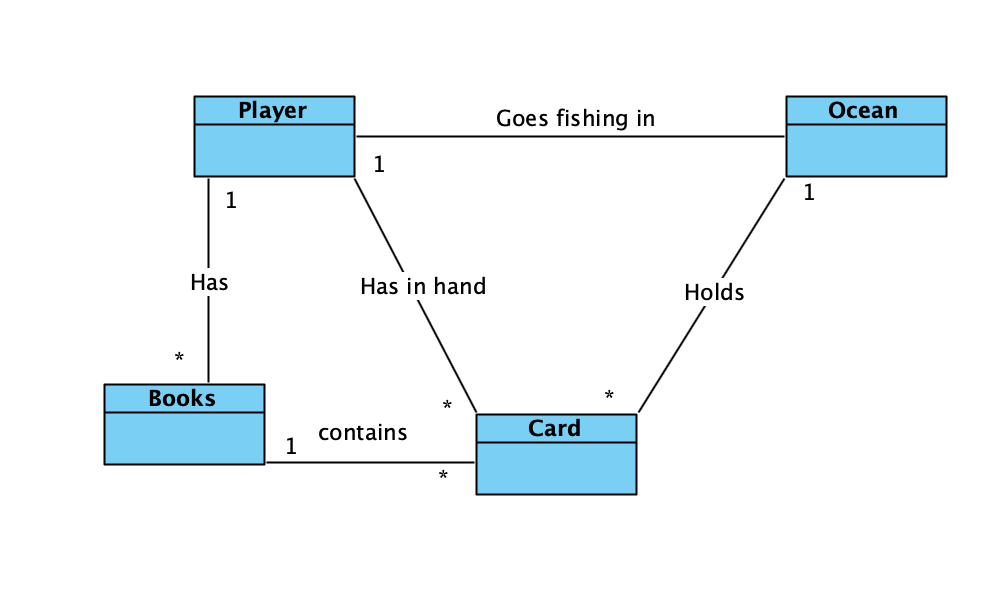
    • The Ocean initially holds all the cards in the deck.
    • When a Player collect Cards from the Ocean this is called “going fishing”.
    • A Book is formed by 4 cards of the same value.

    Objectives

    We need to make a playable version of the Go Fish game. This implies the following functional requirements:

    • A player can join a game.
    • A player can ask another player for cards of a specific value so that they can collect cards from that player’s hand, or else go fishing.
    • A player can draw cards from the ocean.
    • A player can form books out of four cards of the same value in their hand.
    • Once all books have been collected, a winner will be determined.
    • Non-functional requirements
    • The game should be playable by calling the external API for each process in the BEAM.
    • Another process must call the external API of other processes and cannot send messages directly to the process.

    Design

    First of all, we need a process for the Ocean that can hold cards. Other processes should be able to draw cards from that Ocean.

    Then we need a process for each Player, each player has a set of books and cards.

    We will have a Controller, which will keep track of the players that are in the game, whether the game is over, and who won the game.

    Before we start coding, we draw sequence diagrams to determine what messages are sent throughout a game. Our initial design wasn’t perfect, and we had to go back and update the sequence diagrams when we realized that certain things needed to change. For example, initially, we had planned to implement a fully-distributed approach, with only the Player and Ocean entities, however, this turned out to over-complicate the process of determining when the game is over and who had won. So in the end we added a Controller to keep track of this. This resulted in the following sequence diagram (illustrating a two-player game).
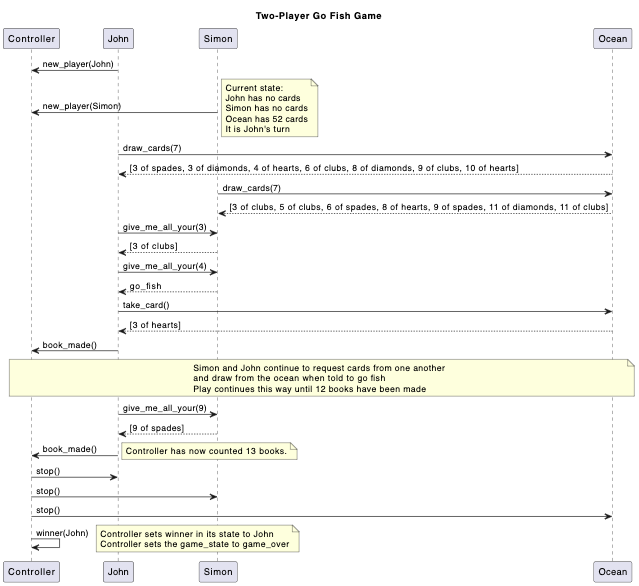
    This diagram describes the game start-up, where new players (John and Simon) first register their names with the Controller. Both players draw 7 cards from the Ocean. Games with 3 or more players draw 5 cards each. Gameplay can now begin with the first player (John) requesting any 3s from the second player (Simon). John receives a card from Simon, and so his turn continues. His second request, for 4s however, is met with a “go fish,” as Simon does not have any 4s. The turn has now passed to Simon; however, John must first take a card from the Ocean. He receives a 3 of hearts, which completes his “book” of 3s. He then sends a message to the Controller that a new book has been made.

    Play continues in this way until the Controller has counted that 12 books have been made. When the 13th book is made, the Controller sends stop messages to each player and the Ocean, and calculates the winner, based on the player with the most books.

    From raw processes to GenServer

    Processes can send and receive messages. They act depending on the message received. We can see that in the initial implementation of the Player process. To maintain the state within this process, we pass the state as a parameter to the recursive call. In this case, the state consists of a hand of cards.

    defmodule GoFish.Player do
      defp loop(hand) do
        IO.puts(["Player has the hand: ",hand])
        receive
          :go_fish ->
            GoFish.Ocean.draw_card(self())
            loop(hand)
          {:cards, cards} ->
            loop(cards ++ hand)
          {:give_me_all_your, taker, asking_value} ->
            #TODO ...
      end
    end

    As you can see, the receive loop will quickly grow for every message we need to receive. We will also have to come up with receive messages for every synchronous call. Finally if one of the processes in the game fails, we currently have no mechanism for recovering the game. The solution to these issues is to use GenServer.

    One immediate benefit of GenServer its easy implementation. This is partly due to the concise introduction in the documentation that includes clear examples to get started using it. As documentation can sometimes be a little difficult to follow, this was a real help.

    GenServer abstracts away the loop function and allows us to organise what happens on each receive message into functions, eliminating some boilerplate code and improving readability.

    GenServer makes it easier to send synchronous messages ( call ), since we don’t need to implement the receive call for getting a response back from send message.

    GenServer can be organised into a supervision tree, which makes it possible to monitor all processes in the game and restart them once one of the processes dies using a recovery strategy. For Go Fish we used the “all for one” supervision strategy, meaning that once the supervisor detects that a child process has died, it will restart every other child process. We chose this strategy because if the player or ocean process dies, the entire game will need to be restarted.

    Testing

    As indicated previously, we used Test Driven Development (TDD) approach. We sought to first and foremost test individual functions isolated from their use in processes. Then we added tests for processes for which there are certain quirks. However there were some hiccups along the way.

    We found that using spawn or start_link for a named process would cause the error that a process with the same name had already been registered. This was because the processes weren’t terminated at the end of each test. Later we found that this could be resolved by using the start_supervised function instead, which would take care of starting and terminating the processes for each test.

    But then we inserted it into the ExUnit.setup_all block, which we mistakingly thought would be executed before every test, but then we found that we needed to use ExUnit.setup for that. We found the naming to be unintuitive, which again shows that naming things is one of the hardest problems in computer science.

    TDD made it clear what the intended functionality was and allowed us to focus merely on that feature without getting distracted by other things that could be improved. For these, we simply wrote a #TODO comment such that we could revisit it later.

    Discussion & Conclusion

    Implementing a game as the first introduction to a language is a great way to get started. It allowed us to focus all our energy on the new concepts and syntax since the specification for the game was very clear and relatable. Go Fish was a good fit for learning BEAM since it naturally mapped to multiple processes that communicate with each other.

    Pair programming was very helpful in getting through challenging problems and for sharing editor workflows and shortcuts with each other. A future blog post may go into depth on pair-programing in a remote setting.

    References

    Go Fish – Wikipedia

    GenServer – Docs

    ExUnit – Docs

    Our Go Fish implementation – GitHub

    Thanks to the following great people for reading drafts and providing comments on this:

    Tee Teoh – Erlang/Elixir Architect

    Torben Hoffmann – VP of ESL London

    Alex Koutmos – Author – Twitter

    The post Implementing Go Fish to Learn Elixir appeared first on Erlang Solutions .

    • Pl chevron_right

      Erlang Solutions: Implementing Go Fish to Learn Elixir

      news.movim.eu / PlanetJabber • 25 August 2022 • 8 minutes

    A walkthrough of how we implemented GoFish as a way of learning Elixir and the concepts of the BEAM and OTP.


    Intro

    In this article, we will outline our initial design and implementation of the card game Go Fish in Elixir using raw processes, and then describe how we were motivated to re-implement the project using the GenServer module instead. The first step is to agree upon the rules of the game, then describe the domain model and non-functional requirements, and from these we can design the solution using sequence diagrams for various scenarios.

    Based on this design, we then implement it in code. We are using Test Driven Development, meaning we start by writing a failing test and then make it pass by implementing the code for it. This approach reduces debugging times and encourages clean and simple code solutions.

    It’s important to note that, while this blog post is presented in a logical order, in reality, we arrived at the eventual solution iteratively. For example, several sequence diagrams have been discarded to reach the ones we present here.

    Go Fish rules

    These are the rules we will follow. This description takes basis in the description on Wikipedia .

    Five cards are dealt from a standard 52-card deck to each player, or seven cards if there are only two players. The remaining cards are shared between the players, usually spread out in a disorderly pile referred to as the “ocean.”

    The player whose turn it is to play asks another player for their cards of a particular face value. For example, Alice may ask, “Bob, do you have any threes?” Alice must have at least one card of the number she is requesting. Bob must give Alice all cards of that number in his hand. If he has none, Bob tells Alice to “go fish,” and Alice draws a card from the “ocean” and places it in her own hand. Then it is Bob’s turn, since the turn switches to the person saying “go fish.” When any player at any time has four cards of one face value, it forms a book, and the cards must be placed face up in front of that player. When all sets of cards have been laid down in books, the game ends. The player with the most books wins.

    Domain

    An overview is shown in the domain diagram below.

    • The Ocean initially holds all the cards in the deck.
    • When a Player collect Cards from the Ocean this is called “going fishing”.
    • A Book is formed by 4 cards of the same value.

    Objectives

    We need to make a playable version of the Go Fish game. This implies the following functional requirements:

    • A player can join a game.
    • A player can ask another player for cards of a specific value so that they can collect cards from that player’s hand, or else go fishing.
    • A player can draw cards from the ocean.
    • A player can form books out of four cards of the same value in their hand.
    • Once all books have been collected, a winner will be determined.
    • Non-functional requirements
    • The game should be playable by calling the external API for each process in the BEAM.
    • Another process must call the external API of other processes and cannot send messages directly to the process.

    Design

    First of all, we need a process for the Ocean that can hold cards. Other processes should be able to draw cards from that Ocean.

    Then we need a process for each Player, each player has a set of books and cards.

    We will have a Controller, which will keep track of the players that are in the game, whether the game is over, and who won the game.

    Before we start coding, we draw sequence diagrams to determine what messages are sent throughout a game. Our initial design wasn’t perfect, and we had to go back and update the sequence diagrams when we realized that certain things needed to change. For example, initially, we had planned to implement a fully-distributed approach, with only the Player and Ocean entities, however, this turned out to over-complicate the process of determining when the game is over and who had won. So in the end we added a Controller to keep track of this. This resulted in the following sequence diagram (illustrating a two-player game).

    This diagram describes the game start-up, where new players (John and Simon) first register their names with the Controller. Both players draw 7 cards from the Ocean. Games with 3 or more players draw 5 cards each. Gameplay can now begin with the first player (John) requesting any 3s from the second player (Simon). John receives a card from Simon, and so his turn continues. His second request, for 4s however, is met with a “go fish,” as Simon does not have any 4s. The turn has now passed to Simon; however, John must first take a card from the Ocean. He receives a 3 of hearts, which completes his “book” of 3s. He then sends a message to the Controller that a new book has been made.

    Play continues in this way until the Controller has counted that 12 books have been made. When the 13th book is made, the Controller sends stop messages to each player and the Ocean, and calculates the winner, based on the player with the most books.

    From raw processes to GenServer

    Processes can send and receive messages. They act depending on the message received. We can see that in the initial implementation of the Player process. To maintain the state within this process, we pass the state as a parameter to the recursive call. In this case, the state consists of a hand of cards.

    defmodule GoFish.Player do
      defp loop(hand) do
        IO.puts(["Player has the hand: ",hand])
        receive
          :go_fish ->
            GoFish.Ocean.draw_card(self())
            loop(hand)
          {:cards, cards} ->
            loop(cards ++ hand)
          {:give_me_all_your, taker, asking_value} ->
            #TODO ...
      end
    end

    As you can see, the receive loop will quickly grow for every message we need to receive. We will also have to come up with receive messages for every synchronous call. Finally if one of the processes in the game fails, we currently have no mechanism for recovering the game. The solution to these issues is to use GenServer.

    One immediate benefit of GenServer its easy implementation. This is partly due to the concise introduction in the documentation that includes clear examples to get started using it. As documentation can sometimes be a little difficult to follow, this was a real help.

    GenServer abstracts away the loop function and allows us to organise what happens on each receive message into functions, eliminating some boilerplate code and improving readability.

    GenServer makes it easier to send synchronous messages ( call ), since we don’t need to implement the receive call for getting a response back from send message.

    GenServer can be organised into a supervision tree, which makes it possible to monitor all processes in the game and restart them once one of the processes dies using a recovery strategy. For Go Fish we used the “all for one” supervision strategy, meaning that once the supervisor detects that a child process has died, it will restart every other child process. We chose this strategy because if the player or ocean process dies, the entire game will need to be restarted.

    Testing

    As indicated previously, we used Test Driven Development (TDD) approach. We sought to first and foremost test individual functions isolated from their use in processes. Then we added tests for processes for which there are certain quirks. However there were some hiccups along the way.

    We found that using spawn or start_link for a named process would cause the error that a process with the same name had already been registered. This was because the processes weren’t terminated at the end of each test. Later we found that this could be resolved by using the start_supervised function instead, which would take care of starting and terminating the processes for each test.

    But then we inserted it into the ExUnit.setup_all block, which we mistakingly thought would be executed before every test, but then we found that we needed to use ExUnit.setup for that. We found the naming to be unintuitive, which again shows that naming things is one of the hardest problems in computer science.

    TDD made it clear what the intended functionality was and allowed us to focus merely on that feature without getting distracted by other things that could be improved. For these, we simply wrote a #TODO comment such that we could revisit it later.

    Discussion & Conclusion

    Implementing a game as the first introduction to a language is a great way to get started. It allowed us to focus all our energy on the new concepts and syntax since the specification for the game was very clear and relatable. Go Fish was a good fit for learning BEAM since it naturally mapped to multiple processes that communicate with each other.

    Pair programming was very helpful in getting through challenging problems and for sharing editor workflows and shortcuts with each other. A future blog post may go into depth on pair-programing in a remote setting.

    References

    Go Fish – Wikipedia

    GenServer – Docs

    ExUnit – Docs

    Our Go Fish implementation – GitHub

    Thanks to the following great people for reading drafts and providing comments on this:

    Tee Teoh – Erlang/Elixir Architect

    Torben Hoffmann – VP of ESL London

    Alex Koutmos – Author – Twitter

    The post Implementing Go Fish to Learn Elixir appeared first on Erlang Solutions .
    • Pl chevron_right

      Erlang Solutions: Implementing Go Fish to Learn Elixir

      news.movim.eu / PlanetJabber • 25 August 2022 • 8 minutes

    A walkthrough of how we implemented GoFish as a way of learning Elixir and the concepts of the BEAM and OTP.


    Intro

    In this article, we will outline our initial design and implementation of the card game Go Fish in Elixir using raw processes, and then describe how we were motivated to re-implement the project using the GenServer module instead. The first step is to agree upon the rules of the game, then describe the domain model and non-functional requirements, and from these we can design the solution using sequence diagrams for various scenarios.

    Based on this design, we then implement it in code. We are using Test Driven Development, meaning we start by writing a failing test and then make it pass by implementing the code for it. This approach reduces debugging times and encourages clean and simple code solutions.

    It’s important to note that, while this blog post is presented in a logical order, in reality, we arrived at the eventual solution iteratively. For example, several sequence diagrams have been discarded to reach the ones we present here.

    Go Fish rules

    These are the rules we will follow. This description takes basis in the description on Wikipedia .

    Five cards are dealt from a standard 52-card deck to each player, or seven cards if there are only two players. The remaining cards are shared between the players, usually spread out in a disorderly pile referred to as the “ocean.”

    The player whose turn it is to play asks another player for their cards of a particular face value. For example, Alice may ask, “Bob, do you have any threes?” Alice must have at least one card of the number she is requesting. Bob must give Alice all cards of that number in his hand. If he has none, Bob tells Alice to “go fish,” and Alice draws a card from the “ocean” and places it in her own hand. Then it is Bob’s turn, since the turn switches to the person saying “go fish.” When any player at any time has four cards of one face value, it forms a book, and the cards must be placed face up in front of that player. When all sets of cards have been laid down in books, the game ends. The player with the most books wins.

    Domain

    An overview is shown in the domain diagram below.

    • The Ocean initially holds all the cards in the deck.
    • When a Player collect Cards from the Ocean this is called “going fishing”.
    • A Book is formed by 4 cards of the same value.

    Objectives

    We need to make a playable version of the Go Fish game. This implies the following functional requirements:

    • A player can join a game.
    • A player can ask another player for cards of a specific value so that they can collect cards from that player’s hand, or else go fishing.
    • A player can draw cards from the ocean.
    • A player can form books out of four cards of the same value in their hand.
    • Once all books have been collected, a winner will be determined.
    • Non-functional requirements
    • The game should be playable by calling the external API for each process in the BEAM.
    • Another process must call the external API of other processes and cannot send messages directly to the process.

    Design

    First of all, we need a process for the Ocean that can hold cards. Other processes should be able to draw cards from that Ocean.

    Then we need a process for each Player, each player has a set of books and cards.

    We will have a Controller, which will keep track of the players that are in the game, whether the game is over, and who won the game.

    Before we start coding, we draw sequence diagrams to determine what messages are sent throughout a game. Our initial design wasn’t perfect, and we had to go back and update the sequence diagrams when we realized that certain things needed to change. For example, initially, we had planned to implement a fully-distributed approach, with only the Player and Ocean entities, however, this turned out to over-complicate the process of determining when the game is over and who had won. So in the end we added a Controller to keep track of this. This resulted in the following sequence diagram (illustrating a two-player game).

    This diagram describes the game start-up, where new players (John and Simon) first register their names with the Controller. Both players draw 7 cards from the Ocean. Games with 3 or more players draw 5 cards each. Gameplay can now begin with the first player (John) requesting any 3s from the second player (Simon). John receives a card from Simon, and so his turn continues. His second request, for 4s however, is met with a “go fish,” as Simon does not have any 4s. The turn has now passed to Simon; however, John must first take a card from the Ocean. He receives a 3 of hearts, which completes his “book” of 3s. He then sends a message to the Controller that a new book has been made.

    Play continues in this way until the Controller has counted that 12 books have been made. When the 13th book is made, the Controller sends stop messages to each player and the Ocean, and calculates the winner, based on the player with the most books.

    From raw processes to GenServer

    Processes can send and receive messages. They act depending on the message received. We can see that in the initial implementation of the Player process. To maintain the state within this process, we pass the state as a parameter to the recursive call. In this case, the state consists of a hand of cards.

    defmodule GoFish.Player do
      defp loop(hand) do
        IO.puts(["Player has the hand: ",hand])
        receive
          :go_fish ->
            GoFish.Ocean.draw_card(self())
            loop(hand)
          {:cards, cards} ->
            loop(cards ++ hand)
          {:give_me_all_your, taker, asking_value} ->
            #TODO ...
      end
    end

    As you can see, the receive loop will quickly grow for every message we need to receive. We will also have to come up with receive messages for every synchronous call. Finally if one of the processes in the game fails, we currently have no mechanism for recovering the game. The solution to these issues is to use GenServer.

    One immediate benefit of GenServer its easy implementation. This is partly due to the concise introduction in the documentation that includes clear examples to get started using it. As documentation can sometimes be a little difficult to follow, this was a real help.

    GenServer abstracts away the loop function and allows us to organise what happens on each receive message into functions, eliminating some boilerplate code and improving readability.

    GenServer makes it easier to send synchronous messages ( call ), since we don’t need to implement the receive call for getting a response back from send message.

    GenServer can be organised into a supervision tree, which makes it possible to monitor all processes in the game and restart them once one of the processes dies using a recovery strategy. For Go Fish we used the “all for one” supervision strategy, meaning that once the supervisor detects that a child process has died, it will restart every other child process. We chose this strategy because if the player or ocean process dies, the entire game will need to be restarted.

    Testing

    As indicated previously, we used Test Driven Development (TDD) approach. We sought to first and foremost test individual functions isolated from their use in processes. Then we added tests for processes for which there are certain quirks. However there were some hiccups along the way.

    We found that using spawn or start_link for a named process would cause the error that a process with the same name had already been registered. This was because the processes weren’t terminated at the end of each test. Later we found that this could be resolved by using the start_supervised function instead, which would take care of starting and terminating the processes for each test.

    But then we inserted it into the ExUnit.setup_all block, which we mistakingly thought would be executed before every test, but then we found that we needed to use ExUnit.setup for that. We found the naming to be unintuitive, which again shows that naming things is one of the hardest problems in computer science.

    TDD made it clear what the intended functionality was and allowed us to focus merely on that feature without getting distracted by other things that could be improved. For these, we simply wrote a #TODO comment such that we could revisit it later.

    Discussion & Conclusion

    Implementing a game as the first introduction to a language is a great way to get started. It allowed us to focus all our energy on the new concepts and syntax since the specification for the game was very clear and relatable. Go Fish was a good fit for learning BEAM since it naturally mapped to multiple processes that communicate with each other.

    Pair programming was very helpful in getting through challenging problems and for sharing editor workflows and shortcuts with each other. A future blog post may go into depth on pair-programing in a remote setting.

    References

    Go Fish – Wikipedia

    GenServer – Docs

    ExUnit – Docs

    Our Go Fish implementation – GitHub

    Thanks to the following great people for reading drafts and providing comments on this:

    Tee Teoh – Erlang/Elixir Architect

    Torben Hoffmann – VP of ESL London

    Alex Koutmos – Author – Twitter

    The post Implementing Go Fish to Learn Elixir appeared first on Erlang Solutions .