• Pl chevron_right

      Erlang Solutions: MongooseIM 6.3: Prometheus, CockroachDB and more

      news.movim.eu / PlanetJabber β€’ 14 November 2024 β€’ 9 minutes

    MongooseIM is a scalable, efficient, high-performance instant messaging server using the proven, open, and extensible XMPP protocol. With each new version, we introduce new features and improvements. For example, version 6.2.0 introduced our new CETS in-memory storage, making setup and autoscaling in cloud environments easier than before (see the blog post for details). The latest release 6.3.0 is no exception. The main highlight is the complete instrumentation rework, allowing seamless integration with modern monitoring solutions like Prometheus.

    Additionally, we have added CockroachDB to the list of supported databases, so you can now let this highly scalable database grow with your applications while avoiding being locked into your cloud provider.

    Observability and instrumentation

    In software engineering, observability is the ability to gather data from a running system to figure out what is going inside: is it working as expected? Does it have any issues? How much load is it handling, and could it do more? There are many ways to improve the observability of a system, and one of the most important is instrumentation . Just like adding extra measuring equipment to a physical system, this means adding additional code to the software. It allows the system administrator to observe the internal state of the system. This comes with a price. There is more work for the developers, increased complexity, and potential performance degradation caused by the collection and processing of additional data.

    However, the benefits usually outweigh the costs, and the ability to inspect the system is often a critical requirement. It is also worth noting that the metrics and events gathered by instrumentation can be used for further automation, e.g. for autoscaling or sending alarms to the administrator.

    Instrumentation in MongooseIM

    Even before our latest release of MongooseIM, there have been multiple means to observe its behaviour:

    Metrics provide numerical values of measured system properties. The values change over time, and the metric can present current value, sum from a sliding window, or a statistic (histogram) of values from a given time period. Prior to version 6.3, MongooseIM used to store such metrics with the help of the exometer library. To view the metrics, one had to configure an Exometer exporter, which would periodically send the metrics to an external service using the Graphite protocol. Because of the protocol, the metrics would be exported to Graphite or InfluxDB version 1 . One could also query a limited subset of metrics using our GraphQL API (or the legacy REST API) or with the command line interface. Alternatively, metrics could be retrieved from the Erlang shell of a running MongooseIM node.

    Logs are another type of instrumentation present in the code. They inform about events occurring in the system and since version 4, they are events with extensible map-like structure and can be formatted e.g. as plain text or JSON. Subsequently, they can be shown in the console or stored in files. You can also set up a log management system like the Elastic (ELK) Stack or Splunk – see the documentation for more details.

    The diagram below shows how these two types of instrumentation can work together:
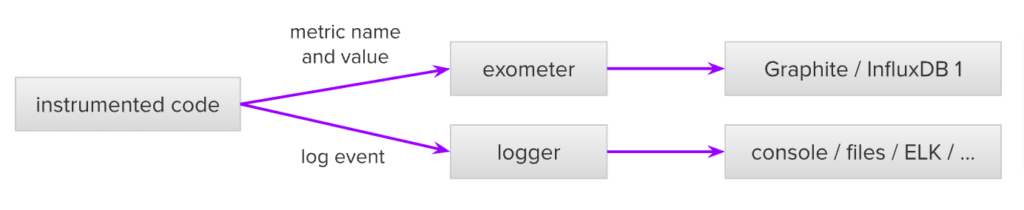
    The first observation is that the instrumented code needs to separately call the log and metric API. Updating a metric and logging an event requires two distinct function calls. Moreover, if there are multiple metrics (e.g. execution time and total number of calls), there would be multiple function calls required. There is potential for inconsistency between metrics, or between metrics and logs, because an error could happen between the function calls. The main issue of this solution is however the hardcoding of Exometer as the metric library and the limitation of the Graphite protocol used to push the metrics to external services.

    Instrumentation rework in MongooseIM 6.3

    The lack of support for the modern and widespread Prometheus protocol was one of the main reasons for the complete rework of instrumentation in version 6.3. Let’s see the updated diagram of MongooseIM instrumentation:

    The most noticeable difference is that in the instrumented code, there is just one event emitted. Such an event is identified by its name and a key-value map of labels and contains measurements (with optional metadata) organised in a key-value map. Each event has to be registered before its instances are emitted with particular measurements. The point of this preliminary step is not only to ensure that all events are handled but also to provide additional information about the event, e.g. the measurement keys that will be used to update metrics. Emitted events are then handled by configurable handlers . Currently, there are three such handlers. Exometer and Logger work similarly as before, but there is a new Prometheus handler as well, which stores the metrics internally in a format compatible with Prometheus and exposes them over an HTTP API. This means that any external service can now scrape the metrics using the Prometheus protocol. The primary case would be to use Prometheus for metrics collection, and a graphical tool like Grafana for display. If you however prefer InfluxDB version 2, you can easily configure a scraper , which would periodically put new data into InfluxDB.

    As you can see in the diagram, logs can be also emitted directly, bypassing the instrumentation API. This is the case for multiple logs in the system, because often there is no need for any metrics, and a log message is enough. In the future though, we might decide to fully replace logs with instrumentation events, because they are more extensible.

    Apart from supporting the Prometheus protocol, additional benefits of the new solution include easier configuration, extensibility, and the ability to add more handlers in the future. You can also have multiple handlers enabled simultaneously, allowing you to gradually change your metric backend from Exometer to Prometheus. Conversely, you can also disable all instrumentation, which was not possible prior to version 6.3. Although it might make little sense at first glance, because it can render the system a black box, it can be useful to gain extra performance in some cases, e.g. if the external metrics like CPU usage are enough, in case of an isolated embedded system, or if resources are very limited.

    The table below compares the legacy metrics solution with the new instrumentation framework:

    Solution Legacy: mongoose_metrics New: mongoose_instrument
    Intended use Metrics Metrics, logs, distributed tracing, alarms, …
    Coupling with handlers Tight: hardcoded Exometer logic, one metric update per function call Loose: events separated from configurable handlers
    Supported handlers Exometer is hardcoded Exometer, Prometheus, Log
    Events identified by Exometer metric name (a list) Event name, Labels (key-value map)
    Event value Single-dimensional numerical value Multi-dimensional measurements with metadata
    Consistency checks None – it is up to the implementer to verify that the correct metric is created and updated Prometheus HTTP endpoint, legacy GraphQL / CLI / REST for Exometer
    API GraphQL / CLI and REST Prometheus HTTP endpoint,legacy GraphQL / CLI / REST for Exometer

    There are about 140 events in total, and some of them have multiple dimensions. You can find an overview in the documentation . In terms of dashboards for tools like Grafana, we believe that each use case of MongooseIM deserves its own. If you are interested in getting one tailored to your needs, don’t hesitate to contact us .

    Using the instrumentation

    Let’s see the new instrumentation in action now. Starting with configuration, let’s examine the new additions to the default configuration file :

    [[listen.http]]
      port = 9090
      transport.num_acceptors = 10
    
      [[listen.http.handlers.mongoose_prometheus_handler]]
        host = "_"
        path = "/metrics"
    
    (...)
    
    [instrumentation.prometheus]
    
    [instrumentation.log]


    The first section, [[listen.http]] , specifies the Prometheus HTTP endpoint. The following [instrumentation.*] sections enable the Prometheus and Log handlers with the default settings – in general, instrumentation events are logged on the DEBUG level, but you can change it. This configuration is all you need to see the metrics at http://localhost:9091/metrics when you start MongooseIM.

    As a second example, let’s say that you want only the Graphite protocol integration. In this case, you might configure MongooseIM to use only the Exometer handler, which would push the metrics prefixed with mim to the influxdb1 host every 60 seconds:

    [[instrumentation.exometer.report.graphite]]
      interval = 60_000
      prefix = "mim"
      host = "influxdb1"


    There are more options possible, and you can find them in the documentation .

    Tracing – ad-hoc instrumentation

    There is one more type of observability available in Erlang systems, which is tracing . It enables a user to have a more in-depth look into the Erlang processes, including the functions being called and the internal messages being exchanged. It is meant to be used by Erlang developers, and should not be used in production environments because of the impact it can have on a running system. It is good to know, however, because it could be helpful to diagnose unusual issues. To make tracing more user-friendly, MongooseIM now includes erlang_doctor with some MongooseIM-specific utilities (see the tr_util module). This tool provides low-level ad-hoc instrumentation, allowing you to instrument functions in a running system, and gather the resulting data in an in-memory table, which can be then queried, processed, and – if needed – exported to a file. Think of it as a backup solution, which could help you diagnose hidden issues, should you ever experience one.

    CockroachDB – a database that scales with MongooseIM

    MongooseIM works best when paired with a relational database like PostgreSQL or MySQL, enabling easy cluster node discovery with CETS and persistent storage for users’ accounts, archived messages and other kinds of data. Although such databases are not horizontally scalable out of the box, you can use managed solutions like Amazon Aurora , AlloyDB or Azure Cosmos DB for PostgreSQL . The downsides are the possible vendor lock-in and the fact that you cannot host and manage the DB yourself. With version 6.3 however, the possibilities are extended to CockroachDB . This PostgreSQL-compatible distributed database can be used either as a provider-independent cloud-based solution or as an internally hosted cluster. You can instantly set it up in your local environment and take advantage of the horizontal scalability of both MongooseIM and CockroachDB. If you want to learn how to deploy both MongooseIM and CockroachDB in Kubernetes, see the documentation for CockroachDB and the Helm chart for MongooseIM, together with our recent blog post about setting up an auto-scalable cluster. If you are interested in having an auto-scalable solution deployed for you, please consider our MongooseIM Autoscaler .

    Summary

    MongooseIM 6.3.0 opens new possibilities for observability – the Prometheus protocol is supported instantly with a new reworked instrumentation layer underneath, guaranteeing ease of future extensions. Regarding database integration, you can now use CockroachDB to store all your persistent data. Apart from these changes, the latest version introduces a multitude of improvements and updates – see the release notes for more information. As the next step, we recommend visiting our product page to see the possible options of support and the services we offer. You can also try the server out at trymongoose.im . In any case, should you have any further questions, feel free to contact us .

    The post MongooseIM 6.3: Prometheus, CockroachDB and more appeared first on Erlang Solutions .

    • Pl chevron_right

      Erlang Solutions: MongooseIM 6.3: Prometheus, CockroachDB and more

      news.movim.eu / PlanetJabber β€’ 14 November 2024 β€’ 9 minutes

    MongooseIM is a scalable, efficient, high-performance instant messaging server using the proven, open, and extensible XMPP protocol. With each new version, we introduce new features and improvements. For example, version 6.2.0 introduced our new CETS in-memory storage, making setup and autoscaling in cloud environments easier than before (see the blog post for details). The latest release 6.3.0 is no exception. The main highlight is the complete instrumentation rework, allowing seamless integration with modern monitoring solutions like Prometheus.

    Additionally, we have added CockroachDB to the list of supported databases, so you can now let this highly scalable database grow with your applications while avoiding being locked into your cloud provider.

    Observability and instrumentation

    In software engineering, observability is the ability to gather data from a running system to figure out what is going inside: is it working as expected? Does it have any issues? How much load is it handling, and could it do more? There are many ways to improve the observability of a system, and one of the most important is instrumentation . Just like adding extra measuring equipment to a physical system, this means adding additional code to the software. It allows the system administrator to observe the internal state of the system. This comes with a price. There is more work for the developers, increased complexity, and potential performance degradation caused by the collection and processing of additional data.

    However, the benefits usually outweigh the costs, and the ability to inspect the system is often a critical requirement. It is also worth noting that the metrics and events gathered by instrumentation can be used for further automation, e.g. for autoscaling or sending alarms to the administrator.

    Instrumentation in MongooseIM

    Even before our latest release of MongooseIM, there have been multiple means to observe its behaviour:

    Metrics provide numerical values of measured system properties. The values change over time, and the metric can present current value, sum from a sliding window, or a statistic (histogram) of values from a given time period. Prior to version 6.3, MongooseIM used to store such metrics with the help of the exometer library. To view the metrics, one had to configure an Exometer exporter, which would periodically send the metrics to an external service using the Graphite protocol. Because of the protocol, the metrics would be exported to Graphite or InfluxDB version 1 . One could also query a limited subset of metrics using our GraphQL API (or the legacy REST API) or with the command line interface. Alternatively, metrics could be retrieved from the Erlang shell of a running MongooseIM node.

    Logs are another type of instrumentation present in the code. They inform about events occurring in the system and since version 4, they are events with extensible map-like structure and can be formatted e.g. as plain text or JSON. Subsequently, they can be shown in the console or stored in files. You can also set up a log management system like the Elastic (ELK) Stack or Splunk – see the documentation for more details.

    The diagram below shows how these two types of instrumentation can work together:

    The first observation is that the instrumented code needs to separately call the log and metric API. Updating a metric and logging an event requires two distinct function calls. Moreover, if there are multiple metrics (e.g. execution time and total number of calls), there would be multiple function calls required. There is potential for inconsistency between metrics, or between metrics and logs, because an error could happen between the function calls. The main issue of this solution is however the hardcoding of Exometer as the metric library and the limitation of the Graphite protocol used to push the metrics to external services.

    Instrumentation rework in MongooseIM 6.3

    The lack of support for the modern and widespread Prometheus protocol was one of the main reasons for the complete rework of instrumentation in version 6.3. Let’s see the updated diagram of MongooseIM instrumentation:

    The most noticeable difference is that in the instrumented code, there is just one event emitted. Such an event is identified by its name and a key-value map of labels and contains measurements (with optional metadata) organised in a key-value map. Each event has to be registered before its instances are emitted with particular measurements. The point of this preliminary step is not only to ensure that all events are handled but also to provide additional information about the event, e.g. the measurement keys that will be used to update metrics. Emitted events are then handled by configurable handlers . Currently, there are three such handlers. Exometer and Logger work similarly as before, but there is a new Prometheus handler as well, which stores the metrics internally in a format compatible with Prometheus and exposes them over an HTTP API. This means that any external service can now scrape the metrics using the Prometheus protocol. The primary case would be to use Prometheus for metrics collection, and a graphical tool like Grafana for display. If you however prefer InfluxDB version 2, you can easily configure a scraper , which would periodically put new data into InfluxDB.

    As you can see in the diagram, logs can be also emitted directly, bypassing the instrumentation API. This is the case for multiple logs in the system, because often there is no need for any metrics, and a log message is enough. In the future though, we might decide to fully replace logs with instrumentation events, because they are more extensible.

    Apart from supporting the Prometheus protocol, additional benefits of the new solution include easier configuration, extensibility, and the ability to add more handlers in the future. You can also have multiple handlers enabled simultaneously, allowing you to gradually change your metric backend from Exometer to Prometheus. Conversely, you can also disable all instrumentation, which was not possible prior to version 6.3. Although it might make little sense at first glance, because it can render the system a black box, it can be useful to gain extra performance in some cases, e.g. if the external metrics like CPU usage are enough, in case of an isolated embedded system, or if resources are very limited.

    The table below compares the legacy metrics solution with the new instrumentation framework:

    Solution Legacy: mongoose_metrics New: mongoose_instrument
    Intended use Metrics Metrics, logs, distributed tracing, alarms, …
    Coupling with handlers Tight: hardcoded Exometer logic, one metric update per function call Loose: events separated from configurable handlers
    Supported handlers Exometer is hardcoded Exometer, Prometheus, Log
    Events identified by Exometer metric name (a list) Event name, Labels (key-value map)
    Event value Single-dimensional numerical value Multi-dimensional measurements with metadata
    Consistency checks None – it is up to the implementer to verify that the correct metric is created and updated Prometheus HTTP endpoint, legacy GraphQL / CLI / REST for Exometer
    API GraphQL / CLI and REST Prometheus HTTP endpoint,legacy GraphQL / CLI / REST for Exometer

    There are about 140 events in total, and some of them have multiple dimensions. You can find an overview in the documentation . In terms of dashboards for tools like Grafana, we believe that each use case of MongooseIM deserves its own. If you are interested in getting one tailored to your needs, don’t hesitate to contact us .

    Using the instrumentation

    Let’s see the new instrumentation in action now. Starting with configuration, let’s examine the new additions to the default configuration file :

    [[listen.http]]
      port = 9090
      transport.num_acceptors = 10
    
      [[listen.http.handlers.mongoose_prometheus_handler]]
        host = "_"
        path = "/metrics"
    
    (...)
    
    [instrumentation.prometheus]
    
    [instrumentation.log]


    The first section, [[listen.http]] , specifies the Prometheus HTTP endpoint. The following [instrumentation.*] sections enable the Prometheus and Log handlers with the default settings – in general, instrumentation events are logged on the DEBUG level, but you can change it. This configuration is all you need to see the metrics at http://localhost:9091/metrics when you start MongooseIM.

    As a second example, let’s say that you want only the Graphite protocol integration. In this case, you might configure MongooseIM to use only the Exometer handler, which would push the metrics prefixed with mim to the influxdb1 host every 60 seconds:

    [[instrumentation.exometer.report.graphite]]
      interval = 60_000
      prefix = "mim"
      host = "influxdb1"


    There are more options possible, and you can find them in the documentation .

    Tracing – ad-hoc instrumentation

    There is one more type of observability available in Erlang systems, which is tracing . It enables a user to have a more in-depth look into the Erlang processes, including the functions being called and the internal messages being exchanged. It is meant to be used by Erlang developers, and should not be used in production environments because of the impact it can have on a running system. It is good to know, however, because it could be helpful to diagnose unusual issues. To make tracing more user-friendly, MongooseIM now includes erlang_doctor with some MongooseIM-specific utilities (see the tr_util module). This tool provides low-level ad-hoc instrumentation, allowing you to instrument functions in a running system, and gather the resulting data in an in-memory table, which can be then queried, processed, and – if needed – exported to a file. Think of it as a backup solution, which could help you diagnose hidden issues, should you ever experience one.

    CockroachDB – a database that scales with MongooseIM

    MongooseIM works best when paired with a relational database like PostgreSQL or MySQL, enabling easy cluster node discovery with CETS and persistent storage for users’ accounts, archived messages and other kinds of data. Although such databases are not horizontally scalable out of the box, you can use managed solutions like Amazon Aurora , AlloyDB or Azure Cosmos DB for PostgreSQL . The downsides are the possible vendor lock-in and the fact that you cannot host and manage the DB yourself. With version 6.3 however, the possibilities are extended to CockroachDB . This PostgreSQL-compatible distributed database can be used either as a provider-independent cloud-based solution or as an internally hosted cluster. You can instantly set it up in your local environment and take advantage of the horizontal scalability of both MongooseIM and CockroachDB. If you want to learn how to deploy both MongooseIM and CockroachDB in Kubernetes, see the documentation for CockroachDB and the Helm chart for MongooseIM, together with our recent blog post about setting up an auto-scalable cluster. If you are interested in having an auto-scalable solution deployed for you, please consider our MongooseIM Autoscaler .

    Summary

    MongooseIM 6.3.0 opens new possibilities for observability – the Prometheus protocol is supported instantly with a new reworked instrumentation layer underneath, guaranteeing ease of future extensions. Regarding database integration, you can now use CockroachDB to store all your persistent data. Apart from these changes, the latest version introduces a multitude of improvements and updates – see the release notes for more information. As the next step, we recommend visiting our product page to see the possible options of support and the services we offer. You can also try the server out at trymongoose.im . In any case, should you have any further questions, feel free to contact us .

    The post MongooseIM 6.3: Prometheus, CockroachDB and more appeared first on Erlang Solutions .

    • Pl chevron_right

      Erlang Solutions: MongooseIM 6.3: Prometheus, CockroachDB and more

      news.movim.eu / PlanetJabber β€’ 14 November 2024 β€’ 9 minutes

    MongooseIM is a scalable, efficient, high-performance instant messaging server using the proven, open, and extensible XMPP protocol. With each new version, we introduce new features and improvements. For example, version 6.2.0 introduced our new CETS in-memory storage, making setup and autoscaling in cloud environments easier than before (see the blog post for details). The latest release 6.3.0 is no exception. The main highlight is the complete instrumentation rework, allowing seamless integration with modern monitoring solutions like Prometheus.

    Additionally, we have added CockroachDB to the list of supported databases, so you can now let this highly scalable database grow with your applications while avoiding being locked into your cloud provider.

    Observability and instrumentation

    In software engineering, observability is the ability to gather data from a running system to figure out what is going inside: is it working as expected? Does it have any issues? How much load is it handling, and could it do more? There are many ways to improve the observability of a system, and one of the most important is instrumentation . Just like adding extra measuring equipment to a physical system, this means adding additional code to the software. It allows the system administrator to observe the internal state of the system. This comes with a price. There is more work for the developers, increased complexity, and potential performance degradation caused by the collection and processing of additional data.

    However, the benefits usually outweigh the costs, and the ability to inspect the system is often a critical requirement. It is also worth noting that the metrics and events gathered by instrumentation can be used for further automation, e.g. for autoscaling or sending alarms to the administrator.

    Instrumentation in MongooseIM

    Even before our latest release of MongooseIM, there have been multiple means to observe its behaviour:

    Metrics provide numerical values of measured system properties. The values change over time, and the metric can present current value, sum from a sliding window, or a statistic (histogram) of values from a given time period. Prior to version 6.3, MongooseIM used to store such metrics with the help of the exometer library. To view the metrics, one had to configure an Exometer exporter, which would periodically send the metrics to an external service using the Graphite protocol. Because of the protocol, the metrics would be exported to Graphite or InfluxDB version 1 . One could also query a limited subset of metrics using our GraphQL API (or the legacy REST API) or with the command line interface. Alternatively, metrics could be retrieved from the Erlang shell of a running MongooseIM node.

    Logs are another type of instrumentation present in the code. They inform about events occurring in the system and since version 4, they are events with extensible map-like structure and can be formatted e.g. as plain text or JSON. Subsequently, they can be shown in the console or stored in files. You can also set up a log management system like the Elastic (ELK) Stack or Splunk – see the documentation for more details.

    The diagram below shows how these two types of instrumentation can work together:

    The first observation is that the instrumented code needs to separately call the log and metric API. Updating a metric and logging an event requires two distinct function calls. Moreover, if there are multiple metrics (e.g. execution time and total number of calls), there would be multiple function calls required. There is potential for inconsistency between metrics, or between metrics and logs, because an error could happen between the function calls. The main issue of this solution is however the hardcoding of Exometer as the metric library and the limitation of the Graphite protocol used to push the metrics to external services.

    Instrumentation rework in MongooseIM 6.3

    The lack of support for the modern and widespread Prometheus protocol was one of the main reasons for the complete rework of instrumentation in version 6.3. Let’s see the updated diagram of MongooseIM instrumentation:

    The most noticeable difference is that in the instrumented code, there is just one event emitted. Such an event is identified by its name and a key-value map of labels and contains measurements (with optional metadata) organised in a key-value map. Each event has to be registered before its instances are emitted with particular measurements. The point of this preliminary step is not only to ensure that all events are handled but also to provide additional information about the event, e.g. the measurement keys that will be used to update metrics. Emitted events are then handled by configurable handlers . Currently, there are three such handlers. Exometer and Logger work similarly as before, but there is a new Prometheus handler as well, which stores the metrics internally in a format compatible with Prometheus and exposes them over an HTTP API. This means that any external service can now scrape the metrics using the Prometheus protocol. The primary case would be to use Prometheus for metrics collection, and a graphical tool like Grafana for display. If you however prefer InfluxDB version 2, you can easily configure a scraper , which would periodically put new data into InfluxDB.

    As you can see in the diagram, logs can be also emitted directly, bypassing the instrumentation API. This is the case for multiple logs in the system, because often there is no need for any metrics, and a log message is enough. In the future though, we might decide to fully replace logs with instrumentation events, because they are more extensible.

    Apart from supporting the Prometheus protocol, additional benefits of the new solution include easier configuration, extensibility, and the ability to add more handlers in the future. You can also have multiple handlers enabled simultaneously, allowing you to gradually change your metric backend from Exometer to Prometheus. Conversely, you can also disable all instrumentation, which was not possible prior to version 6.3. Although it might make little sense at first glance, because it can render the system a black box, it can be useful to gain extra performance in some cases, e.g. if the external metrics like CPU usage are enough, in case of an isolated embedded system, or if resources are very limited.

    The table below compares the legacy metrics solution with the new instrumentation framework:

    Solution Legacy: mongoose_metrics New: mongoose_instrument
    Intended use Metrics Metrics, logs, distributed tracing, alarms, …
    Coupling with handlers Tight: hardcoded Exometer logic, one metric update per function call Loose: events separated from configurable handlers
    Supported handlers Exometer is hardcoded Exometer, Prometheus, Log
    Events identified by Exometer metric name (a list) Event name, Labels (key-value map)
    Event value Single-dimensional numerical value Multi-dimensional measurements with metadata
    Consistency checks None – it is up to the implementer to verify that the correct metric is created and updated Prometheus HTTP endpoint, legacy GraphQL / CLI / REST for Exometer
    API GraphQL / CLI and REST Prometheus HTTP endpoint,legacy GraphQL / CLI / REST for Exometer

    There are about 140 events in total, and some of them have multiple dimensions. You can find an overview in the documentation . In terms of dashboards for tools like Grafana, we believe that each use case of MongooseIM deserves its own. If you are interested in getting one tailored to your needs, don’t hesitate to contact us .

    Using the instrumentation

    Let’s see the new instrumentation in action now. Starting with configuration, let’s examine the new additions to the default configuration file :

    [[listen.http]]
      port = 9090
      transport.num_acceptors = 10
    
      [[listen.http.handlers.mongoose_prometheus_handler]]
        host = "_"
        path = "/metrics"
    
    (...)
    
    [instrumentation.prometheus]
    
    [instrumentation.log]


    The first section, [[listen.http]] , specifies the Prometheus HTTP endpoint. The following [instrumentation.*] sections enable the Prometheus and Log handlers with the default settings – in general, instrumentation events are logged on the DEBUG level, but you can change it. This configuration is all you need to see the metrics at http://localhost:9091/metrics when you start MongooseIM.

    As a second example, let’s say that you want only the Graphite protocol integration. In this case, you might configure MongooseIM to use only the Exometer handler, which would push the metrics prefixed with mim to the influxdb1 host every 60 seconds:

    [[instrumentation.exometer.report.graphite]]
      interval = 60_000
      prefix = "mim"
      host = "influxdb1"


    There are more options possible, and you can find them in the documentation .

    Tracing – ad-hoc instrumentation

    There is one more type of observability available in Erlang systems, which is tracing . It enables a user to have a more in-depth look into the Erlang processes, including the functions being called and the internal messages being exchanged. It is meant to be used by Erlang developers, and should not be used in production environments because of the impact it can have on a running system. It is good to know, however, because it could be helpful to diagnose unusual issues. To make tracing more user-friendly, MongooseIM now includes erlang_doctor with some MongooseIM-specific utilities (see the tr_util module). This tool provides low-level ad-hoc instrumentation, allowing you to instrument functions in a running system, and gather the resulting data in an in-memory table, which can be then queried, processed, and – if needed – exported to a file. Think of it as a backup solution, which could help you diagnose hidden issues, should you ever experience one.

    CockroachDB – a database that scales with MongooseIM

    MongooseIM works best when paired with a relational database like PostgreSQL or MySQL, enabling easy cluster node discovery with CETS and persistent storage for users’ accounts, archived messages and other kinds of data. Although such databases are not horizontally scalable out of the box, you can use managed solutions like Amazon Aurora , AlloyDB or Azure Cosmos DB for PostgreSQL . The downsides are the possible vendor lock-in and the fact that you cannot host and manage the DB yourself. With version 6.3 however, the possibilities are extended to CockroachDB . This PostgreSQL-compatible distributed database can be used either as a provider-independent cloud-based solution or as an internally hosted cluster. You can instantly set it up in your local environment and take advantage of the horizontal scalability of both MongooseIM and CockroachDB. If you want to learn how to deploy both MongooseIM and CockroachDB in Kubernetes, see the documentation for CockroachDB and the Helm chart for MongooseIM, together with our recent blog post about setting up an auto-scalable cluster. If you are interested in having an auto-scalable solution deployed for you, please consider our MongooseIM Autoscaler .

    Summary

    MongooseIM 6.3.0 opens new possibilities for observability – the Prometheus protocol is supported instantly with a new reworked instrumentation layer underneath, guaranteeing ease of future extensions. Regarding database integration, you can now use CockroachDB to store all your persistent data. Apart from these changes, the latest version introduces a multitude of improvements and updates – see the release notes for more information. As the next step, we recommend visiting our product page to see the possible options of support and the services we offer. You can also try the server out at trymongoose.im . In any case, should you have any further questions, feel free to contact us .

    The post MongooseIM 6.3: Prometheus, CockroachDB and more appeared first on Erlang Solutions .

    • Pl chevron_right

      ProcessOne: Docker: set up ejabberd and keep it updated automagically with Watchtower

      news.movim.eu / PlanetJabber β€’ 12 November 2024 β€’ 5 minutes

    This blog post will guide you through the process of setting up an ejabberd Community Server using Docker and Docker Compose , and will also introduce Watchtower for automatic updates. This approach ensures that your configuration remains secure and up to date.

    Furthermore, we will examine the potential risks associated with automatic updates and suggest Diun as an alternative tool for notification-based updates.

    1. Prerequisites

    Please ensure that Docker and Docker Compose are installed on your system.
    It would be beneficial to have a basic understanding of Docker concepts, including containers, volumes, and bind-mounts.

    2. Set up ejabberd in a docker container

    Let’s first create a minimal Docker Compose configuration to start an ejabberd instance.

    2.1: Prepare the directories

    For this setup, we will create a directory structure to store the configuration, database, and logs. This will assist in maintaining an organised setup, facilitating data management and backup.

    mkdir ejabberd-setup && cd ejabberd-setup
    touch docker-compose.yml
    mkdir conf
    touch conf/ejabberd.yml
    mkdir database
    mkdir logs
    

    This should give you the following structure:

    ejabberd-setup/
    β”œβ”€β”€ conf
    β”‚Β Β  └── ejabberd.yml
    β”œβ”€β”€ database
    β”œβ”€β”€ docker-compose.yml
    └── logs
    

    To verify the structure, use the tree command. It is a very useful tool which we use on a daily basis.

    Set permissions

    Since we&aposll be using bind mounts in this example, it’s important to ensure that specific directories (like database and logs) have the correct permissions for the ejabberd user inside the container (UID 9000 , GID 9000 ).

    Customize or skip depending on your needs:

    sudo chown -R 9000:9000 database
    sudo chown -R 9000:9000 logs
    

    Based on this Issue .

    2.2: The docker-compose.yml file

    Now, create a docker-compose.yml file inside, containing:

    services:
      ejabberd:
        image: ejabberd/ecs:latest
        container_name: ejabberd
        ports:
          - "5222:5222"  # XMPP Client
          - "5280:5280"  # Web Admin Interface, optional
        volumes:
          - ./database:/home/ejabberd/database
          - ./ejabberd.yml:/home/ejabberd/conf/ejabberd.yml
          - ./logs:/home/ejabberd/logs
        restart: unless-stopped
    

    2.3: The ejabberd.yml file

    A basic configuration file for ejabberd will be required. we will name it conf/ejabberd.yml .

    loglevel: 4
    hosts:
    - "localhost"
    
    acl:
      admin:
        user:
          - "admin@localhost"
    
    access_rules:
      local:
        allow: all
    
    listen
      -
        port: 5222
        module: ejabberd_c2s
    
      -
        port: 5280                       # optional
        module: ejabberd_http            # optional
        request_handlers:                # optional
          "/admin": ejabberd_web_admin   # optional
    

    Did you know? Since 23.10 , ejabberd now offers users the option to create or update the relevant MySQL, PostgreSQL or SQLite tables automatically with each update. You can read more about it here .

    3: Starting ejabberd

    Finally, we&aposre set: you can run the following command to start your stack: docker-compose up -d

    Your ejabberd instance should now running in a Docker container! Good job! πŸŽ‰

    From there, customize ejabberd to your liking! Naturally, in this example we&aposre going to keep ejabberd in its barebones configuration, but we recommend that you configure it as you wish at this stage, to suit your needs (Domains, SSL, favorite modules, chosen database, admin accounts, etc.)

    Example: You could register your admin account at this stage

    To use the admin interface, you need to create an admin account. You can do so by running the following command:

    $ docker exec -it ejabberd bin/ejabberdctl register admin localhost very_secret_password
    > User admin@localhost successfully registered
    

    Once this step is complete, you will then be able to access the web admin interface at http://localhost:5280/admin .

    4. Set up automatic updates

    Finally, we come to the most interesting part: how do I keep my containers up to date?

    To keep your ejabberd instance up-to-date, you can use Watchtower , a Docker container that automatically updates other containers when new versions are available.

    Warning: Auto-updates are undoubtedly convenient, but they can occasionally cause issues if an update includes breaking changes. Always test updates in a staging environment and back up your data before enabling auto-updates. Further information can be found at the end of this post.

    If greater control over updates is required (for example, for mission-critical production servers or clusters), we recommend using Diun , which can notify you of available updates and allow you to decide when to apply them.

    4.1: Add Watchtower to your docker-compose.yml

    To include Watchtower , add it as a service in docker-compose.yml :

    services:
      ejabberd:
        image: ejabberd/ecs:latest
        container_name: ejabberd
        ports:
          - "5222:5222"  # XMPP Client
          - "5280:5280"  # Web Admin Interface, optional
        volumes:
          - ./database:/home/ejabberd/database
          - ./ejabberd.yml:/home/ejabberd/conf/ejabberd.yml
          - ./logs:/home/ejabberd/logs
        restart: unless-stopped
    
      watchtower:
        image: containrrr/watchtower
        container_name: watchtower
        volumes:
          - /var/run/docker.sock:/var/run/docker.sock
        environment:
          - WATCHTOWER_POLL_INTERVAL=3600 # Sets how often Watchtower checks for updates (in seconds).
          - WATCHTOWER_CLEANUP=true # Ensures old images are cleaned up after updating.
        restart: unless-stopped
    

    Watchtower offers a wide range of additional features, including the ability to set up notifications, exclude specific containers, and more. For further information, please refer to the Watchtower Docs .

    Once the docker-compose.yml has been updated, please bring it up using the following command: docker-compose up -d

    And.... here you go, you&aposre all set!

    5. Best Practices & closing words

    Now Watchtower will now perform periodic checks for updates to your ejabberd container and apply them automatically.

    Well to be fair, by default if other containers are running on the same server, Watchtower will also update them. This behaviour can be controlled with the help of environment variables (see Container Selection ), which will assist in excluding containers from updates.


    One important thing to understand is that Watchtower will only update containers tagged with the :latest tag.

    In an environment with numerous Docker containers, using the latest tag streamlines the process of automatic updates. However, it may introduce unanticipated changes with each new, disruptive update. Ideally, we recommend always setting a speficic version like ejabberd/ecs:24.10 and deciding how/when to update it manually (especially if you&aposre into infra-as-code ).

    However, we recognise that some users may prefer the convenience of automatic updates, personnally that&aposs what I do my homelab but I&aposm not scared to dig in if stuff breaks.


    tl;dr: For a small community server/homelab/personnal instance, Watchtower will help keep things up to date with minimal effort. However, for bigger production environments, it is advisable to tag specific versions to ensure greater control and resilience and update them manually.

    With this setup, you now have a fully functioning XMPP server using ejabberd, with automatic updates. You can now start building your chat applications or integrate it with your existing services! πŸš€

    • Pl chevron_right

      ProcessOne: Docker: set up ejabberd and keep it updated automagically with Watchtower

      news.movim.eu / PlanetJabber β€’ 12 November 2024 β€’ 5 minutes

    This blog post will guide you through the process of setting up an ejabberd Community Server using Docker and Docker Compose , and will also introduce Watchtower for automatic updates. This approach ensures that your configuration remains secure and up to date.

    Furthermore, we will examine the potential risks associated with automatic updates and suggest Diun as an alternative tool for notification-based updates.

    1. Prerequisites

    Please ensure that Docker and Docker Compose are installed on your system.
    It would be beneficial to have a basic understanding of Docker concepts, including containers, volumes, and bind-mounts.

    2. Set up ejabberd in a docker container

    Let’s first create a minimal Docker Compose configuration to start an ejabberd instance.

    2.1: Prepare the directories

    For this setup, we will create a directory structure to store the configuration, database, and logs. This will assist in maintaining an organised setup, facilitating data management and backup.

    mkdir ejabberd-setup && cd ejabberd-setup
    touch docker-compose.yml
    mkdir conf
    touch conf/ejabberd.yml
    mkdir database
    mkdir logs
    

    This should give you the following structure:

    ejabberd-setup/
    β”œβ”€β”€ conf
    β”‚Β Β  └── ejabberd.yml
    β”œβ”€β”€ database
    β”œβ”€β”€ docker-compose.yml
    └── logs
    

    To verify the structure, use the tree command. It is a very useful tool which we use on a daily basis.

    Set permissions

    Since we&aposll be using bind mounts in this example, it’s important to ensure that specific directories (like database and logs) have the correct permissions for the ejabberd user inside the container (UID 9000 , GID 9000 ).

    Customize or skip depending on your needs:

    sudo chown -R 9000:9000 database
    sudo chown -R 9000:9000 logs
    

    Based on this Issue .

    2.2: The docker-compose.yml file

    Now, create a docker-compose.yml file inside, containing:

    services:
      ejabberd:
        image: ejabberd/ecs:latest
        container_name: ejabberd
        ports:
          - "5222:5222"  # XMPP Client
          - "5280:5280"  # Web Admin Interface, optional
        volumes:
          - ./database:/home/ejabberd/database
          - ./ejabberd.yml:/home/ejabberd/conf/ejabberd.yml
          - ./logs:/home/ejabberd/logs
        restart: unless-stopped
    

    2.3: The ejabberd.yml file

    A basic configuration file for ejabberd will be required. we will name it conf/ejabberd.yml .

    loglevel: 4
    hosts:
    - "localhost"
    
    acl:
      admin:
        user:
          - "admin@localhost"
    
    access_rules:
      local:
        allow: all
    
    listen
      -
        port: 5222
        module: ejabberd_c2s
    
      -
        port: 5280                       # optional
        module: ejabberd_http            # optional
        request_handlers:                # optional
          "/admin": ejabberd_web_admin   # optional
    

    Did you know? Since 23.10 , ejabberd now offers users the option to create or update the relevant MySQL, PostgreSQL or SQLite tables automatically with each update. You can read more about it here .

    3: Starting ejabberd

    Finally, we&aposre set: you can run the following command to start your stack: docker-compose up -d

    Your ejabberd instance should now running in a Docker container! Good job! πŸŽ‰

    From there, customize ejabberd to your liking! Naturally, in this example we&aposre going to keep ejabberd in its barebones configuration, but we recommend that you configure it as you wish at this stage, to suit your needs (Domains, SSL, favorite modules, chosen database, admin accounts, etc.)

    Example: You could register your admin account at this stage

    To use the admin interface, you need to create an admin account. You can do so by running the following command:

    $ docker exec -it ejabberd bin/ejabberdctl register admin localhost very_secret_password
    > User admin@localhost successfully registered
    

    Once this step is complete, you will then be able to access the web admin interface at http://localhost:5280/admin .

    4. Set up automatic updates

    Finally, we come to the most interesting part: how do I keep my containers up to date?

    To keep your ejabberd instance up-to-date, you can use Watchtower , a Docker container that automatically updates other containers when new versions are available.

    Warning: Auto-updates are undoubtedly convenient, but they can occasionally cause issues if an update includes breaking changes. Always test updates in a staging environment and back up your data before enabling auto-updates. Further information can be found at the end of this post.

    If greater control over updates is required (for example, for mission-critical production servers or clusters), we recommend using Diun , which can notify you of available updates and allow you to decide when to apply them.

    4.1: Add Watchtower to your docker-compose.yml

    To include Watchtower , add it as a service in docker-compose.yml :

    services:
      ejabberd:
        image: ejabberd/ecs:latest
        container_name: ejabberd
        ports:
          - "5222:5222"  # XMPP Client
          - "5280:5280"  # Web Admin Interface, optional
        volumes:
          - ./database:/home/ejabberd/database
          - ./ejabberd.yml:/home/ejabberd/conf/ejabberd.yml
          - ./logs:/home/ejabberd/logs
        restart: unless-stopped
    
      watchtower:
        image: containrrr/watchtower
        container_name: watchtower
        volumes:
          - /var/run/docker.sock:/var/run/docker.sock
        environment:
          - WATCHTOWER_POLL_INTERVAL=3600 # Sets how often Watchtower checks for updates (in seconds).
          - WATCHTOWER_CLEANUP=true # Ensures old images are cleaned up after updating.
        restart: unless-stopped
    

    Watchtower offers a wide range of additional features, including the ability to set up notifications, exclude specific containers, and more. For further information, please refer to the Watchtower Docs .

    Once the docker-compose.yml has been updated, please bring it up using the following command: docker-compose up -d

    And.... here you go, you&aposre all set!

    5. Best Practices & closing words

    Now Watchtower will now perform periodic checks for updates to your ejabberd container and apply them automatically.

    Well to be fair, by default if other containers are running on the same server, Watchtower will also update them. This behaviour can be controlled with the help of environment variables (see Container Selection ), which will assist in excluding containers from updates.


    One important thing to understand is that Watchtower will only update containers tagged with the :latest tag.

    In an environment with numerous Docker containers, using the latest tag streamlines the process of automatic updates. However, it may introduce unanticipated changes with each new, disruptive update. Ideally, we recommend always setting a speficic version like ejabberd/ecs:24.10 and deciding how/when to update it manually (especially if you&aposre into infra-as-code ).

    However, we recognise that some users may prefer the convenience of automatic updates, personnally that&aposs what I do my homelab but I&aposm not scared to dig in if stuff breaks.


    tl;dr: For a small community server/homelab/personnal instance, Watchtower will help keep things up to date with minimal effort. However, for bigger production environments, it is advisable to tag specific versions to ensure greater control and resilience and update them manually.

    With this setup, you now have a fully functioning XMPP server using ejabberd, with automatic updates. You can now start building your chat applications or integrate it with your existing services! πŸš€

    • Pl chevron_right

      ProcessOne: Docker: set up ejabberd and keep it updated automagically with Watchtower

      news.movim.eu / PlanetJabber β€’ 12 November 2024 β€’ 5 minutes

    This blog post will guide you through the process of setting up an ejabberd Community Server using Docker and Docker Compose , and will also introduce Watchtower for automatic updates. This approach ensures that your configuration remains secure and up to date.

    Furthermore, we will examine the potential risks associated with automatic updates and suggest Diun as an alternative tool for notification-based updates.

    1. Prerequisites

    Please ensure that Docker and Docker Compose are installed on your system.
    It would be beneficial to have a basic understanding of Docker concepts, including containers, volumes, and bind-mounts.

    2. Set up ejabberd in a docker container

    Let’s first create a minimal Docker Compose configuration to start an ejabberd instance.

    2.1: Prepare the directories

    For this setup, we will create a directory structure to store the configuration, database, and logs. This will assist in maintaining an organised setup, facilitating data management and backup.

    mkdir ejabberd-setup && cd ejabberd-setup
    touch docker-compose.yml
    mkdir conf
    touch conf/ejabberd.yml
    mkdir database
    mkdir logs
    

    This should give you the following structure:

    ejabberd-setup/
    β”œβ”€β”€ conf
    β”‚Β Β  └── ejabberd.yml
    β”œβ”€β”€ database
    β”œβ”€β”€ docker-compose.yml
    └── logs
    

    To verify the structure, use the tree command. It is a very useful tool which we use on a daily basis.

    Set permissions

    Since we&aposll be using bind mounts in this example, it’s important to ensure that specific directories (like database and logs) have the correct permissions for the ejabberd user inside the container (UID 9000 , GID 9000 ).

    Customize or skip depending on your needs:

    sudo chown -R 9000:9000 database
    sudo chown -R 9000:9000 logs
    

    Based on this Issue .

    2.2: The docker-compose.yml file

    Now, create a docker-compose.yml file inside, containing:

    services:
      ejabberd:
        image: ejabberd/ecs:latest
        container_name: ejabberd
        ports:
          - "5222:5222"  # XMPP Client
          - "5280:5280"  # Web Admin Interface, optional
        volumes:
          - ./database:/home/ejabberd/database
          - ./ejabberd.yml:/home/ejabberd/conf/ejabberd.yml
          - ./logs:/home/ejabberd/logs
        restart: unless-stopped
    

    2.3: The ejabberd.yml file

    A basic configuration file for ejabberd will be required. we will name it conf/ejabberd.yml .

    loglevel: 4
    hosts:
    - "localhost"
    
    acl:
      admin:
        user:
          - "admin@localhost"
    
    access_rules:
      local:
        allow: all
    
    listen
      -
        port: 5222
        module: ejabberd_c2s
    
      -
        port: 5280                       # optional
        module: ejabberd_http            # optional
        request_handlers:                # optional
          "/admin": ejabberd_web_admin   # optional
    

    Did you know? Since 23.10 , ejabberd now offers users the option to create or update the relevant MySQL, PostgreSQL or SQLite tables automatically with each update. You can read more about it here .

    3: Starting ejabberd

    Finally, we&aposre set: you can run the following command to start your stack: docker-compose up -d

    Your ejabberd instance should now running in a Docker container! Good job! πŸŽ‰

    From there, customize ejabberd to your liking! Naturally, in this example we&aposre going to keep ejabberd in its barebones configuration, but we recommend that you configure it as you wish at this stage, to suit your needs (Domains, SSL, favorite modules, chosen database, admin accounts, etc.)

    Example: You could register your admin account at this stage

    To use the admin interface, you need to create an admin account. You can do so by running the following command:

    $ docker exec -it ejabberd bin/ejabberdctl register admin localhost very_secret_password
    > User admin@localhost successfully registered
    

    Once this step is complete, you will then be able to access the web admin interface at http://localhost:5280/admin .

    4. Set up automatic updates

    Finally, we come to the most interesting part: how do I keep my containers up to date?

    To keep your ejabberd instance up-to-date, you can use Watchtower , a Docker container that automatically updates other containers when new versions are available.

    Warning: Auto-updates are undoubtedly convenient, but they can occasionally cause issues if an update includes breaking changes. Always test updates in a staging environment and back up your data before enabling auto-updates. Further information can be found at the end of this post.

    If greater control over updates is required (for example, for mission-critical production servers or clusters), we recommend using Diun , which can notify you of available updates and allow you to decide when to apply them.

    4.1: Add Watchtower to your docker-compose.yml

    To include Watchtower , add it as a service in docker-compose.yml :

    services:
      ejabberd:
        image: ejabberd/ecs:latest
        container_name: ejabberd
        ports:
          - "5222:5222"  # XMPP Client
          - "5280:5280"  # Web Admin Interface, optional
        volumes:
          - ./database:/home/ejabberd/database
          - ./ejabberd.yml:/home/ejabberd/conf/ejabberd.yml
          - ./logs:/home/ejabberd/logs
        restart: unless-stopped
    
      watchtower:
        image: containrrr/watchtower
        container_name: watchtower
        volumes:
          - /var/run/docker.sock:/var/run/docker.sock
        environment:
          - WATCHTOWER_POLL_INTERVAL=3600 # Sets how often Watchtower checks for updates (in seconds).
          - WATCHTOWER_CLEANUP=true # Ensures old images are cleaned up after updating.
        restart: unless-stopped
    

    Watchtower offers a wide range of additional features, including the ability to set up notifications, exclude specific containers, and more. For further information, please refer to the Watchtower Docs .

    Once the docker-compose.yml has been updated, please bring it up using the following command: docker-compose up -d

    And.... here you go, you&aposre all set!

    5. Best Practices & closing words

    Now Watchtower will now perform periodic checks for updates to your ejabberd container and apply them automatically.

    Well to be fair, by default if other containers are running on the same server, Watchtower will also update them. This behaviour can be controlled with the help of environment variables (see Container Selection ), which will assist in excluding containers from updates.


    One important thing to understand is that Watchtower will only update containers tagged with the :latest tag.

    In an environment with numerous Docker containers, using the latest tag streamlines the process of automatic updates. However, it may introduce unanticipated changes with each new, disruptive update. Ideally, we recommend always setting a speficic version like ejabberd/ecs:24.10 and deciding how/when to update it manually (especially if you&aposre into infra-as-code ).

    However, we recognise that some users may prefer the convenience of automatic updates, personnally that&aposs what I do my homelab but I&aposm not scared to dig in if stuff breaks.


    tl;dr: For a small community server/homelab/personnal instance, Watchtower will help keep things up to date with minimal effort. However, for bigger production environments, it is advisable to tag specific versions to ensure greater control and resilience and update them manually.

    With this setup, you now have a fully functioning XMPP server using ejabberd, with automatic updates. You can now start building your chat applications or integrate it with your existing services! πŸš€

    • Pl chevron_right

      ProcessOne: Thoughts on Improving Messaging Protocols β€” Part 2, Matrix

      news.movim.eu / PlanetJabber β€’ 5 November 2024 β€’ 2 minutes

    Thoughts on Improving Messaging Protocols β€” Part 2, Matrix

    In the first part of this blog post , I explained how the Matrix protocol works, contrasted its design philosophy with XMPP, and discussed why these differences lead to performance costs in Matrix. Matrix processes each conversation as a graph of events, merged in real-time [1] .

    Merge operations can be costly in Matrix for large rooms, affecting both database storage and load and disk usage when memory is exhausted, reaching swap level .

    That said, there is still room for improvement in the protocol. We have designed and tested slight changes that could make Matrix much more efficient for large rooms.

    A Proposal to Simplify and Speed Up Merge Operations

    Here is the rationale behind a proposal we have made to simplify and speed up merge operations:

    State resolution v2 uses certain graph algorithms, which can result in at least linear processing time for the number of state events in a room’s DAG, creating a significant load on servers.

    The goal of this issue is to discuss and develop changes to state resolution to achieve O(n log ⁑ n) total processing time when handling a room with n state events (i.e., O(log ⁑ n) on average) in realistic scenarios, while maintaining a good user experience.

    The approach described below is closer to state resolution v1 but seeks to address state resets in a different way.

    For more detail, you can read our proposal on the Matrix spec tracker: Make state resolution faster .

    In simpler terms, we propose adding a version associated with each event_id to simplify conflict management and introduce a heuristic that skips traversal of large parts of the graph.

    Impact of the Proposal

    From our initial assessment, in a very large room β€” such as one with 100,000 members β€” our approach could improve processing performance by 100x to 1000x, as the current processing cost scales with the number of users in the room. This improvement would enable smoother conversations, reduced lag, and more responsive interactions for end-users, while also reducing server infrastructure load and resource usage.

    While our primary goal is to improve performance in very large rooms, these changes benefit all users by reducing overall server load and improving processing times across various room sizes.

    We plan to implement this improvement in our own code to evaluate its real-world effectiveness while the Matrix team considers its potential value for the reference protocol.


    1. For those who remember, a conversation in Matrix is similar to the collaborative editing protocol built on top of XMPP for the Google Wave platform.
    • Pl chevron_right

      ProcessOne: Thoughts on Improving Messaging Protocols β€” Part 2, Matrix

      news.movim.eu / PlanetJabber β€’ 5 November 2024 β€’ 2 minutes

    Thoughts on Improving Messaging Protocols β€” Part 2, Matrix

    In the first part of this blog post , I explained how the Matrix protocol works, contrasted its design philosophy with XMPP, and discussed why these differences lead to performance costs in Matrix. Matrix processes each conversation as a graph of events, merged in real-time [1] .

    Merge operations can be costly in Matrix for large rooms, affecting both database storage and load and disk usage when memory is exhausted, reaching swap level .

    That said, there is still room for improvement in the protocol. We have designed and tested slight changes that could make Matrix much more efficient for large rooms.

    A Proposal to Simplify and Speed Up Merge Operations

    Here is the rationale behind a proposal we have made to simplify and speed up merge operations:

    State resolution v2 uses certain graph algorithms, which can result in at least linear processing time for the number of state events in a room’s DAG, creating a significant load on servers.

    The goal of this issue is to discuss and develop changes to state resolution to achieve O(n log ⁑ n) total processing time when handling a room with n state events (i.e., O(log ⁑ n) on average) in realistic scenarios, while maintaining a good user experience.

    The approach described below is closer to state resolution v1 but seeks to address state resets in a different way.

    For more detail, you can read our proposal on the Matrix spec tracker: Make state resolution faster .

    In simpler terms, we propose adding a version associated with each event_id to simplify conflict management and introduce a heuristic that skips traversal of large parts of the graph.

    Impact of the Proposal

    From our initial assessment, in a very large room β€” such as one with 100,000 members β€” our approach could improve processing performance by 100x to 1000x, as the current processing cost scales with the number of users in the room. This improvement would enable smoother conversations, reduced lag, and more responsive interactions for end-users, while also reducing server infrastructure load and resource usage.

    While our primary goal is to improve performance in very large rooms, these changes benefit all users by reducing overall server load and improving processing times across various room sizes.

    We plan to implement this improvement in our own code to evaluate its real-world effectiveness while the Matrix team considers its potential value for the reference protocol.


    1. For those who remember, a conversation in Matrix is similar to the collaborative editing protocol built on top of XMPP for the Google Wave platform.
    • Pl chevron_right

      ProcessOne: Thoughts on Improving Messaging Protocols β€” Part 2, Matrix

      news.movim.eu / PlanetJabber β€’ 5 November 2024 β€’ 2 minutes

    Thoughts on Improving Messaging Protocols β€” Part 2, Matrix

    In the first part of this blog post , I explained how the Matrix protocol works, contrasted its design philosophy with XMPP, and discussed why these differences lead to performance costs in Matrix. Matrix processes each conversation as a graph of events, merged in real-time [1] .

    Merge operations can be costly in Matrix for large rooms, affecting both database storage and load and disk usage when memory is exhausted, reaching swap level .

    That said, there is still room for improvement in the protocol. We have designed and tested slight changes that could make Matrix much more efficient for large rooms.

    A Proposal to Simplify and Speed Up Merge Operations

    Here is the rationale behind a proposal we have made to simplify and speed up merge operations:

    State resolution v2 uses certain graph algorithms, which can result in at least linear processing time for the number of state events in a room’s DAG, creating a significant load on servers.

    The goal of this issue is to discuss and develop changes to state resolution to achieve O(n log ⁑ n) total processing time when handling a room with n state events (i.e., O(log ⁑ n) on average) in realistic scenarios, while maintaining a good user experience.

    The approach described below is closer to state resolution v1 but seeks to address state resets in a different way.

    For more detail, you can read our proposal on the Matrix spec tracker: Make state resolution faster .

    In simpler terms, we propose adding a version associated with each event_id to simplify conflict management and introduce a heuristic that skips traversal of large parts of the graph.

    Impact of the Proposal

    From our initial assessment, in a very large room β€” such as one with 100,000 members β€” our approach could improve processing performance by 100x to 1000x, as the current processing cost scales with the number of users in the room. This improvement would enable smoother conversations, reduced lag, and more responsive interactions for end-users, while also reducing server infrastructure load and resource usage.

    While our primary goal is to improve performance in very large rooms, these changes benefit all users by reducing overall server load and improving processing times across various room sizes.

    We plan to implement this improvement in our own code to evaluate its real-world effectiveness while the Matrix team considers its potential value for the reference protocol.


    1. For those who remember, a conversation in Matrix is similar to the collaborative editing protocol built on top of XMPP for the Google Wave platform.